What is a Knowledge Base?
The Knowledge Base is the place to document information that should be accessible over time – internally, or externally when appropriate. It’s used to store solutions, explanations, procedures, and reference material in a searchable and organized way, instead of relying on tickets, emails, or informal notes.
Article status lifecycle
To help you manage your content effectively, every article in your Knowledge Base has a specific status. This ensures that only the right information reaches your team and your clients at the right time.
Draft – This is where every article begins. When you create a new article, it automatically enters the Draft status. This is your “work-in-progress” phase, visible only to your internal team while it’s being written or reviewed. It cannot be seen by customers or shared until you are ready to go live.
Published – These are your “live” articles. A published article is finalized and ready for action. If you toggle the Public setting to On, the article also becomes visible to outside of your organization. See Article visibility settings for more details.
Archived: An archived article is no longer published, usually because it is outdated or no longer relevant. Once archived, the article is hidden from customers (even if the Public toggle is on) but remains accessible to your internal team for reference.
Create new article
- Click the Three-lined (‘Hamburger’) icon on the top-right corner and choose Knowledge base.
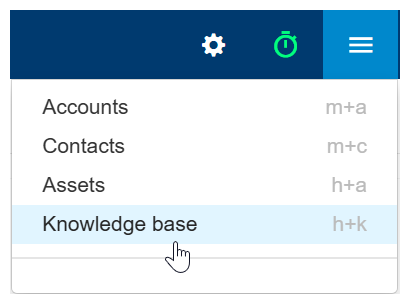
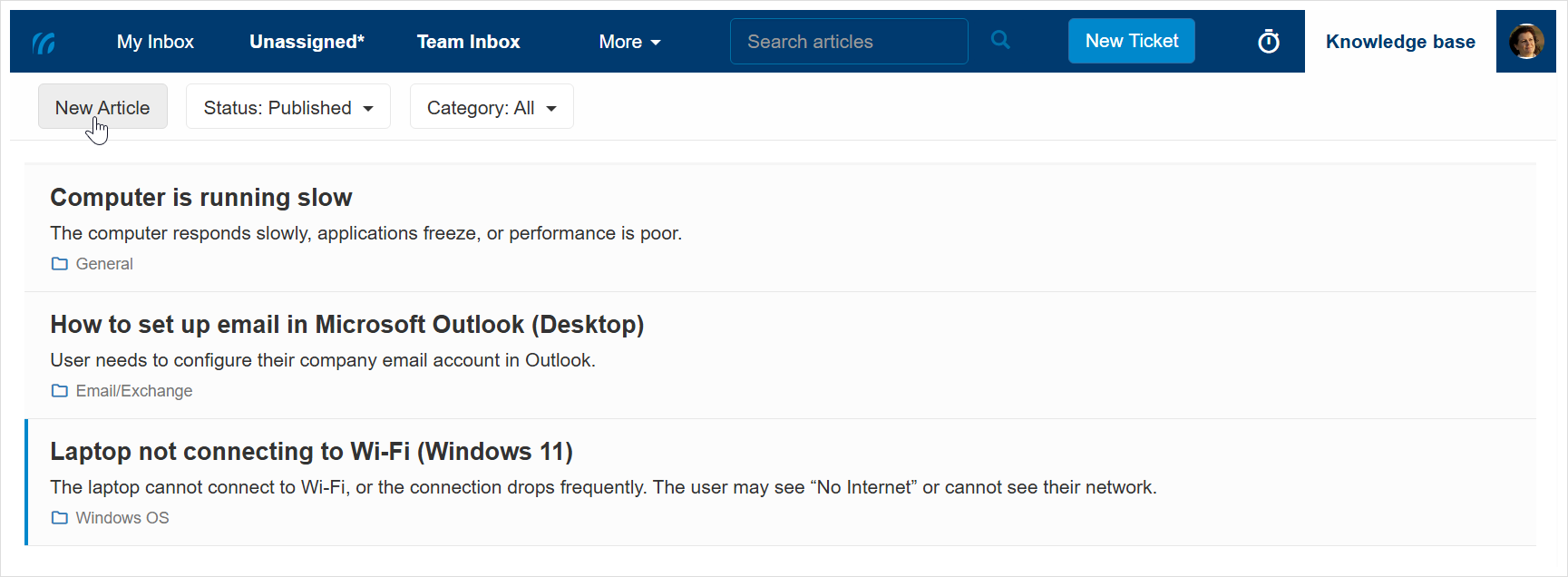
- Click New Article from the top-left corner.
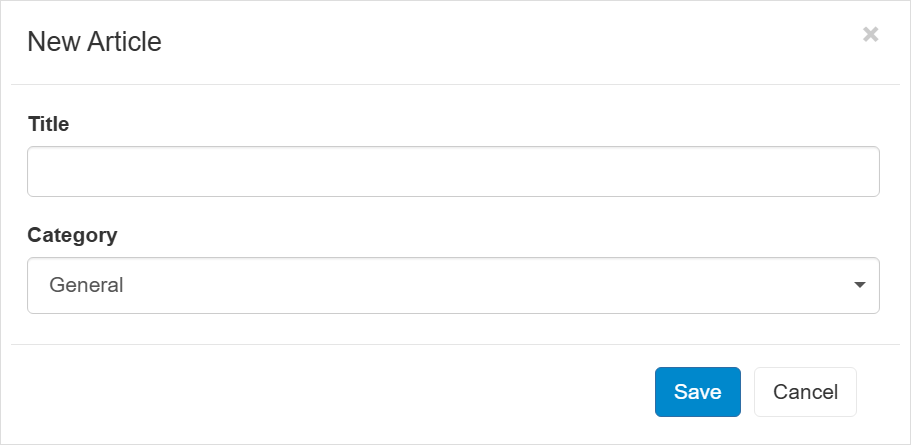
- Enter the Article Title, select a category and click Save.
- The newly added draft article will be shown at the top.
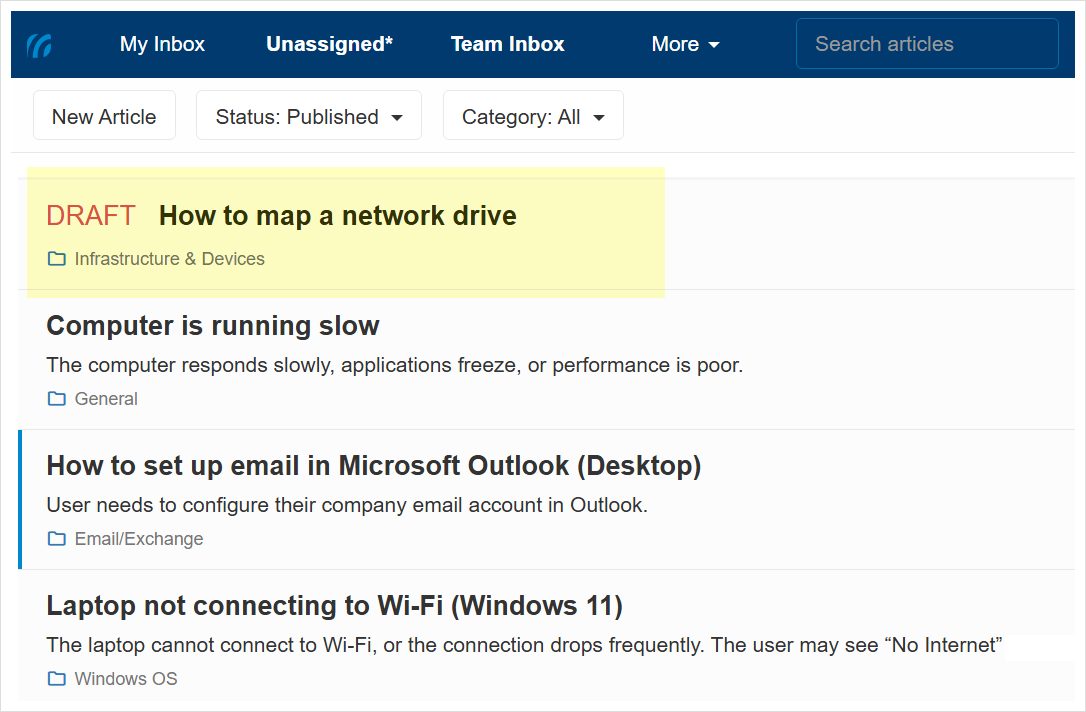
- Click the article to edit and manage its details.
See Managing articles for more information.
View articles list
- Click the Three-lined (‘Hamburger’) icon on the top-right corner and choose Knowledge base.
- This will display the published articles list.
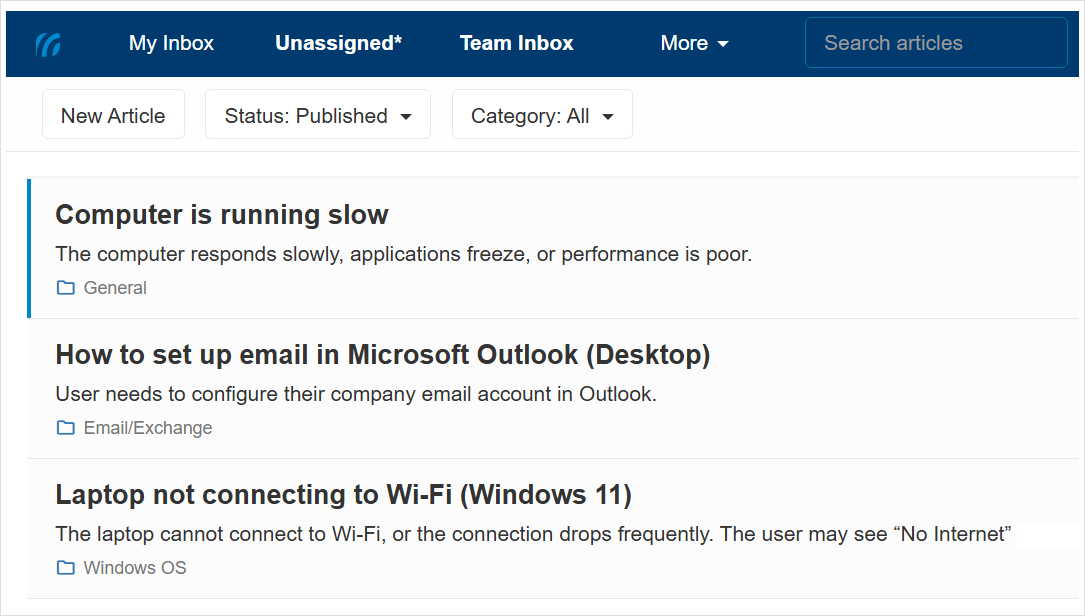
- To view Draft and Archived articles in the list, use the Status dropdown.
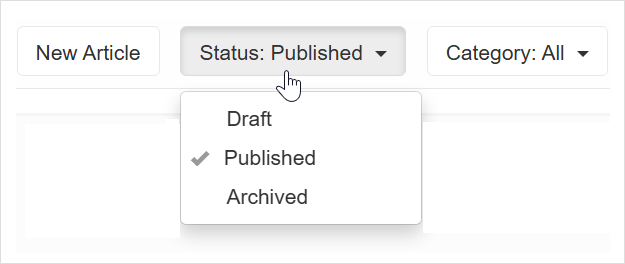
-
To only view articles from a selected category, use the Category dropdown.
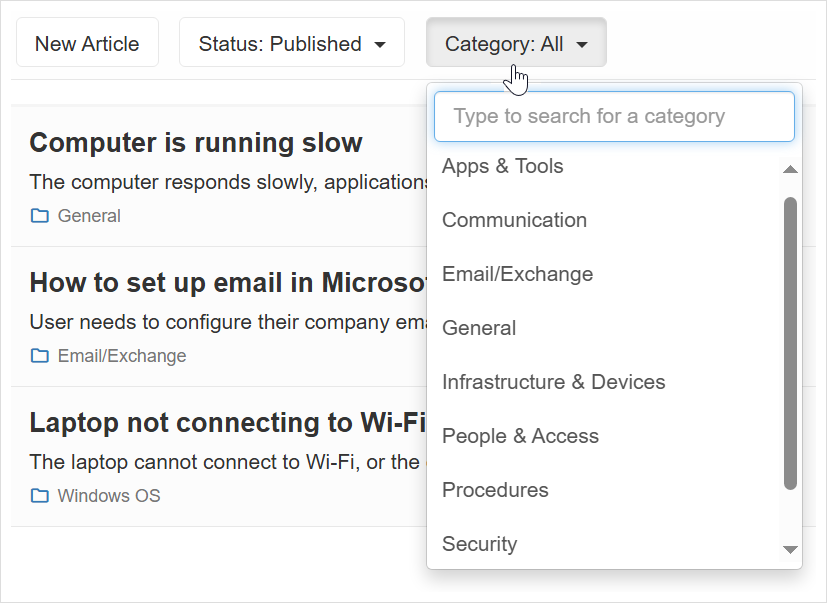
Search for articles
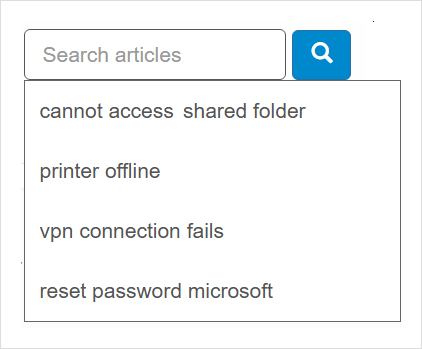
Click the Three-lined (‘Hamburger’) icon in the top-right corner and choose Knowledge base to view the published articles list. Press / or click the Search articles search box at the top to search for articles.