What is a follower?
Being a Follower means you are involved in the ticket, without being the assigned user. You can follow tickets silently, without actively participating in the discussion, or by actively posting replies and internal notes. Posting to the ticket, will automatically add you as a follower.When does a follower get notified on updates?
Ticket followers receive email notification and the ticket is pushed into their inbox when:- A ticket has new posts (public replies or internal notes).
- Ticket details are updated.
How is a follower notified on updates?
Followers are notified in the following ways:- The ticket is pushed to the top of their inbox in Replypad.
- They get an email notification message for each update. They don’t get the same message as the “To” and “Cc” recipients, however, they see the original recipients of the message as part of the email notification they get, as part of the body of the email. The message they receive will contain the content of the original message sent to the To/Cc – and also, some additional meta-data related to the ticket, like who’s assigned.
Become a follower
You can become a follower in one of the following ways:- By posting to the ticket.
- By activating the ‘Follow’ option for yourself.
- By adding another user or a team to the ticket as a follower.
- By automatically by activating a trigger to add a follower to a ticket.
Option 1 – Post to a ticket
First option is to post to the ticket. If you are not the assignee of the ticket, or a follower, posting a public reply or an internal note will automatically add you to the ticket’s followers.- In the ticket window, click the public reply or internal note links.
- Type your reply and click Post.
- You should now see yourself as a follower on ticket’s sidebar, under the Followers section.
Option 2 – activate the Follow option
- Click Follow under the Followers section on the sidebar.

- You should now see yourself in the followers section on ticket’s sidebar.

Option 3 – add other users or teams as followers
- Click Manage under the Followers area in the ticket window, on the sidebar.
- Start typing the name of the user you want to add in the Followers area and select the user from the popup list. Alternatively, you can also mention a whole team, which will add all team members as followers.
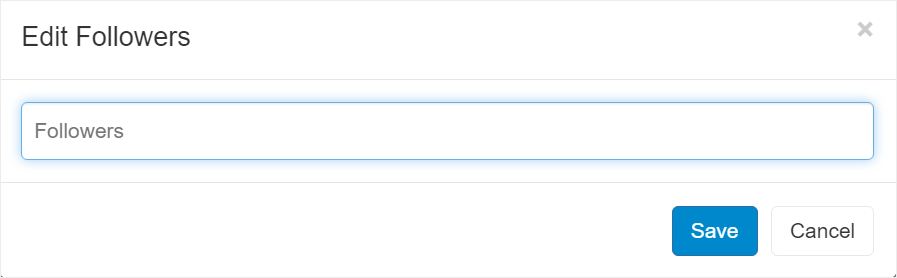
- Click Save.
- You should now see the names you added in the followers section on ticket ’s sidebar.

Another quick way to add users as followers is by mentioning a user or a whole team using the @ symbol in the text. @Mentioning them will automatically add the user or team members if you mention a team as followers or as Cc recipients of the ticket – depending on whether it’s an internal note or a public reply. Learn more in Mentions.
Option 4 – automatically by activating a trigger
Triggers are a set of user defined rules that help you automate your work.You can use triggers to automatically add users as followers for a ticket, when the condition you define is met. For example, if a ticket is created for a specific account, then add a specific user as a follower.
See Become a follower using triggers for a detailed usage example.
See Triggers for complete step-by-step explanation about creating triggers.
If you are new to triggers, we recommend on reading understanding triggers first.
If you are new to triggers, we recommend on reading understanding triggers first.
Unfollow tickets
Unfollowing a ticket means that new posts and updates to tickets will not reach your inbox anymore and email notifications will not be sent.You can always choose to follow the ticket again and other users may also loop you in asking for your advice by adding you as a follower.
To un-follow a ticket:
- In the ticket window, in the sidebar, click Unfollow under the Followers area.

- You should no longer see your name in the followers list.
Followers and access rights
User access rights means that users may be restricted from accessing tickets according to the ticket’s team. For example, restrict a user from seeing financial discussions by restricting the “Accounting” Team.When a user is added as a follower, this overrides the access rights settings. The user is then granted with access to this ticket, even if otherwise they wouldn’t have.