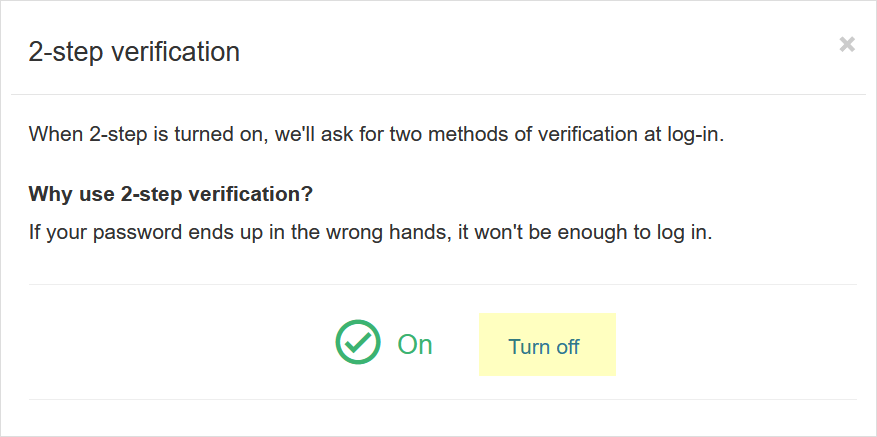
2-step verification provides an additional layer of security for your account. If your password is compromised, an unauthorized user will still need a verification code to sign in.
When 2-step verification is enabled, you will be prompted to enter a verification code during login. After you enter your Replypad account credentials, a verification code will be sent to your Account Email Address.
Enable 2-step verification:
- Hover over and click Manage.
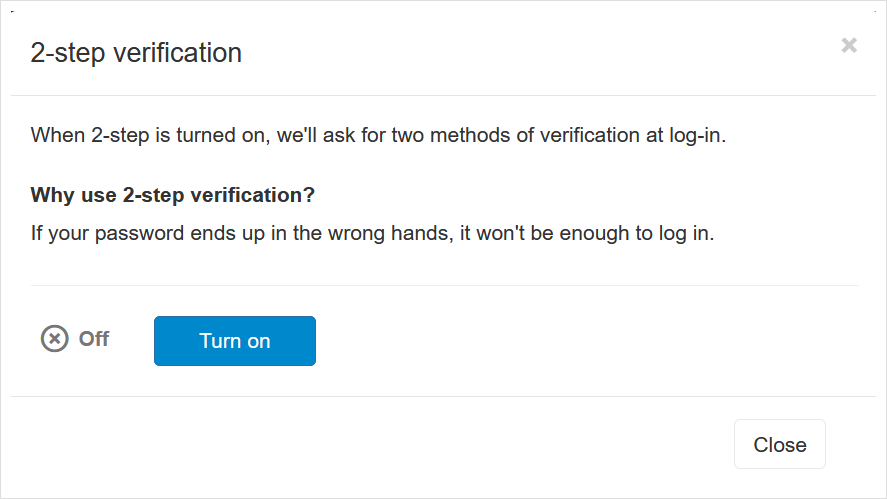
- In the window that opens click Turn on to enable 2-step verification.
Backup codes
Once you turn on 2-step verification you will be introduced with your backup codes.
Backup codes allow you to access your account if you are unable to receive the verification code.
- Backup codes are single-use and expire after they are used.
- The backup codes will be displayed to you only once.
- You can copy and store the backup codes in a secure location for future use.
- To generate a new set of backup codes, click Regenerate.
Disable 2-step verification:
- Hover over and click Manage.
- Click Turn off to disable 2-step verification.