What are API Tokens
API tokens let you connect external tools, scripts, custom programs that you develop, and integrations to Replypad without sharing your login credentials. Each token is tied to a user, acts as them,and is used to authenticate requests made to the Replypad API.
By default, a token created under Create a new API Token impersonates your own user account. This means:
The token inherits your user privileges and access rights on a one-to-one basis.
If your privileges or access rights change – for example, they’re reduced or your role changes – any existing token you hold will automatically reflect that change.
The token always inherits its permissions live from the associated user’s privileges and access rights; it does not hold a fixed, independent set of permissions.
Administrators can create API tokens for themselves or for other users (see Create a new API Token for another user below). Creating and managing tokens for other users is useful for provisioning integrations centrally or troubleshooting on a user’s behalf.
Create a new API Token
Use this option to generate a token tied to your own user and permissions.
Click the Gear icon on the top-right area of the toolbar and choose API Tokens from the dropdown menu. The API Tokens page shows.
Click New API Token from the top-left corner.

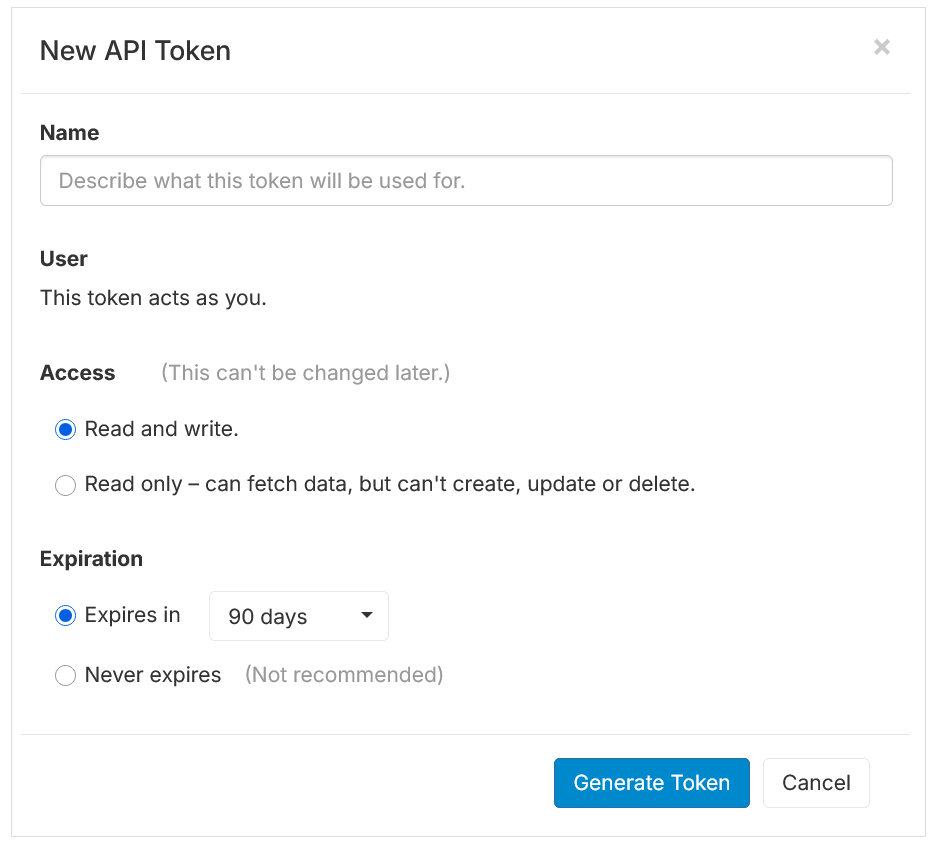
Enter the Name.
Select Access:
Read and write.
Read only (can fetch data, but can’t create, update or delete).
Set Expiration:
Expires in 30/90/180/365 days.
Never expires.
Click Generate Token.
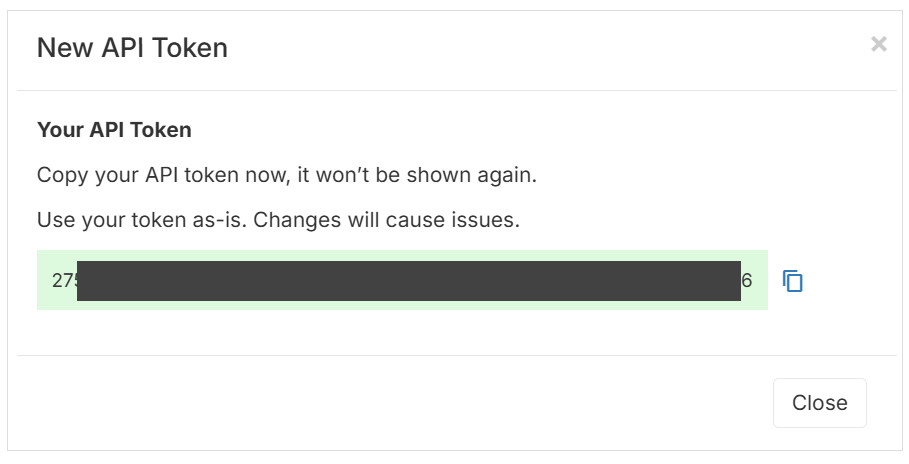
Copy the API Token and store it in a safe place.
Create a new API Token for another user
An administrator user can create and manage API tokens for other users. This is useful when setting up an integration that should run under a specific user, or when generating a token for a teammate who needs help getting started.
Click the Gear icon on the top-right area of the toolbar and choose API Tokens from the dropdown menu. The API Tokens page shows.
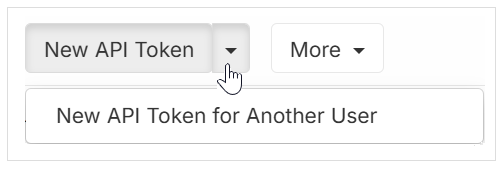
Click New API Token dropdown from the top-left corner and select New API Token for Another User.
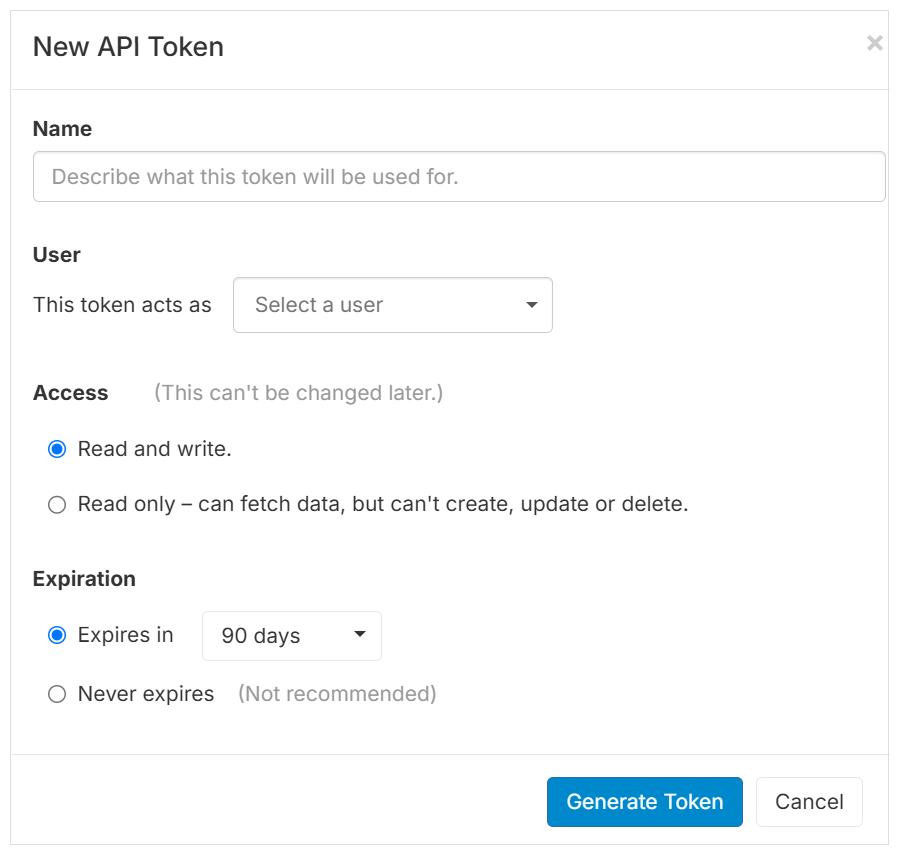
Enter the Name.
Select the User.
Select Access:
Read and write.
Read only (can fetch data, but can’t create, update or delete).
Set Expiration:
Expires in 30/90/180/365 days.
Never expires.
Click Generate Token.
Copy the API Token and store it in a safe place.
API Token statuses
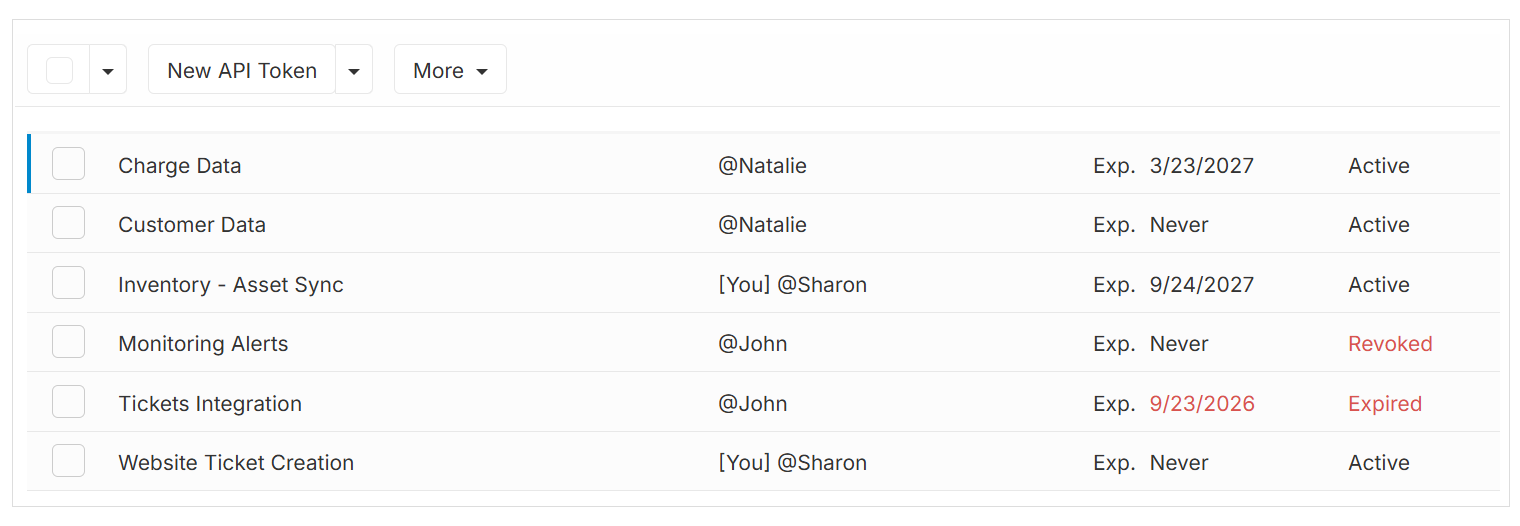
Each token displays one of the following statuses, reflecting whether it can currently be used to authenticate API requests:
Active – The token is valid and can be used to make API requests.
Expired – The token has passed its expiration date and can no longer be used. You can extend the expiration date to reactivate it – see Change token expiration date.
Suspended – The token is inactive and cannot be used. A token is suspended automatically when the associated user account becomes inactive, when API access is disabled for that user, or when the user’s role changes in a way that affects their permissions. Suspended tokens are only displayed for administrators.
Revoked – The token is permanently unusable. Tokens can be revoked by the user that owns them and by administrators.
Change token expiration
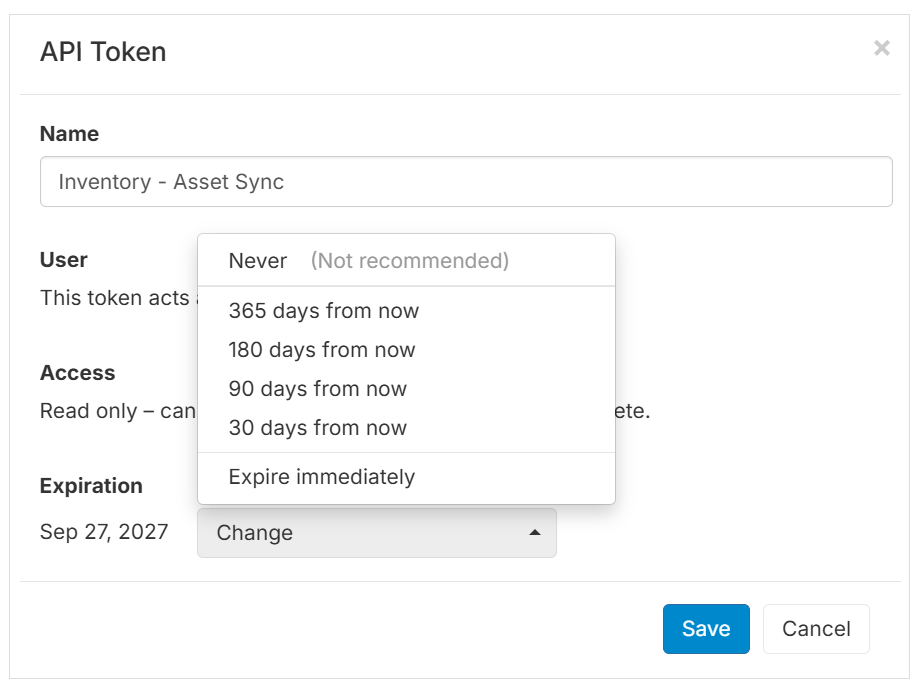
You can manage the expiration date of active or expired tokens. You can either extend the token’s validity or to make it expire immediately.
Click the Gear icon on the top-right area of the toolbar and choose API Tokens from the dropdown menu. The API Tokens page shows.
Click the token to open its details.
Change the token expiration date.
Click Save.
Revoke API Token
Revoking a token immediately makes it permanently unusable. Use this when a token is no longer needed or when you suspect that might have been exposed and want to tighten security and provision another new token instead.
Click the Gear icon on the top-right area of the toolbar and choose API Tokens from the dropdown menu. The API Tokens page shows.
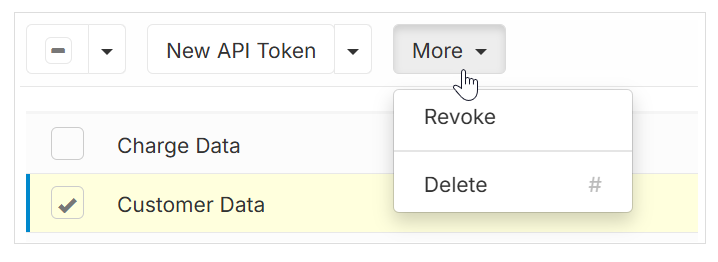
Select the checkbox next to the token you want to revoke.
Click More > Revoke.
Click Revoke Now.
Delete API Token
Deleting a token removes it and the token cannot be used anymore.
Click the Gear icon on the top-right area of the toolbar and choose API Tokens from the dropdown menu. The API Tokens page shows.
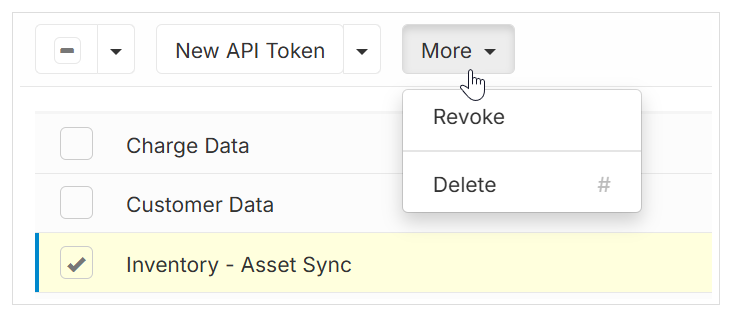
Select the checkbox next to the token you want to delete.
Click More > Delete, or press # as a keyboard shortcut.
- Click Delete Now.
API Documentation
Once you have an API token, you can use it to authenticate requests to the Replypad API. Such requests can come from your own scripts and applications, or through automation platforms and AI agents that can make HTTP requests.
See the Replypad API reference for available endpoints, supported operations, request and response formats, and examples.