Importing charges
The import feature allows you to quickly import charges and time entries into your workspace from a CSV (Comma Separated Values) text file, without the need to manually add them one by one.
Prepare the CSV file for import
To import your charges and time entries you should prepare a CSV text file that stores the records you want to import. CSV stands for Comma Separated Values, and it is a plain text file. Each line in the file represents a charge or time entry record which consists of one or more data fields, separated by commas. The first row in the file is the fields heading or names, and all of the other rows contain actual charge/time entry fields data or values, i.e., the actual data to import.
When preparing the file, verify field headings and naming conventions are accurate, as they are critical for a successful import. During the import the header name is matched with the parallel data field of a charge/time entry record in your workspace.
The file may only include header names with the exact names of fields listed below.
Your CSV file does not need to include all fields/headers, and fields can be arranged in any order.
Supported header field names for product and service charges:
| Field name | Requirements | Description |
|---|---|---|
| Date | Mandatory | The date on which the work was performed or the product was sold. Multiple date formats are supported. Use one format per file, and select it in the file import window just before importing. mm/dd/yyyy mm.dd.yyyy mm-dd-yyyy Example: 07/31/2027 dd/mm/yyyy dd.mm.yyyy dd-mm-yyyy Example: 31/07/2027 yyyy/mm/dd yyyy.mm.dd yyyy-mm-dd Example: 2027/07/31 |
| Type | Mandatory | The line type:
|
| User | Optional. If not provided, the user importing the file will be used. |
For product charges – leave empty (do not provide a value). For service charges – the nickname of the user associated with the service charge. When empty – the nickname of the user importing the file will be used. Permissions: Administrators and Power users with ‘All’ billing access rights can import charges for other users. |
| Start time | Mandatory if End time provided in the file. Optional for service charges. Start and End times, or – Hours worked, mandatory for time entries. |
The work start time. Applicable only to service charges and time entries. The start time must be earlier than the end time. Supported formats (use only one format per file): HH:mm (24-hour format) Example: 14:30 hh:mm AM/PM (12-hour format) Example: 2:30 PM Mandatory when a value for End time is provided. Leave empty (do not provide a value) for product charges. |
| End time | Mandatory if Start time provided in the file. Optional for service charges. Start and End times, or – Hours worked, mandatory for time entries. |
The work end time. Applicable only to service charges and time entries. The end time must be later than the start time. Supported formats (use only one format per file): HH:mm (24-hour format) Example: 14:30 hh:mm AM/PM (12-hour format) Example: 02:30 PM Mandatory when a value for Start time is provided. Leave empty (do not provide a value) for product charges. |
| Hours worked | Optional for service charges. Hours worked – or – Start and End times mandatory for time entries. |
Applicable only to service charges and time entries. If no value is provided, it will be calculated based on the start and end times. If a value is provided, it must match the start and end times, if those are provided. Use the HH:mm duration format. Supported values range from 00:00 to 23:59. Example: 07:45 (7 hours and 45 minutes.) Leave empty (do not provide a value) for product charges. |
| Account name | Mandatory for product and service charges. Optional for time entries. |
The exact name of the customer account as stored in your accounts list. |
| Ticket number | Optional | The number of the ticket the charge or time entry is associated with. |
| Item name | Mandatory | The exact name of a product or service as stored in your products & services list. |
| Quantity | Mandatory for product and service charges. | The number of units or hours to charge. Leave empty (do not provide a value) for time entries. |
| Description | Optional If the field is not provided in the file, the product or service description will be used. |
The charge or time entry description. If the field is provided in the file and the value is empty – the charge or time entry description will be empty. Maximum length: 4,000 characters. Records containing longer values are rejected during import. |
Users managing financial details, can import additional information: |
||
| Price | Optional | Unit price or hourly rate. For charges, if empty, the product or service price/rate, or the user hourly rate will be used. Leave empty (do not provide a value) for time entries. |
| Billable flag | Optional | Indicates whether the customer should be billed for this charge. Supported values: For Billable: Yes, Y or True. For Not Billable: No, N or False Leave empty (do not provide a value) for time entries. |
| Billed flag | Optional | Indicates whether the charge has been billed. Supported values: For Billed: Yes, Y or True. For Not Billed: No, N or False Leave empty (do not provide a value) for time entries. |
| Invoice ref | Optional | The number or reference of the invoice under which this charge was billed. A value can be provided only when the Billed flag is set. Leave empty (do not provide a value) for time entries. |
Note:
The import limit is 1,000 charges/time entries per file.
Example
Below is an example of a CSV file that can be imported:
Date,Type,User,Hours worked,Account Name,Item Name,Quantity,Description
05/03/2025,service,@John,3:45,Acme Company,Website design,3.75,Designing the homepage.
06/03/2025,product,,,Acme Company,HDMI Cable 35',5,HDMI Cable 35'
Who can import?
Users can import charges and time entries based on their billing access rights. For example, some users can only import charges related to themselves, while others can import charges involving other users.
Importing charges and time entries
- Click the Three-lined (‘Hamburger’) icon on the top-right corner and choose Charges & Time log.
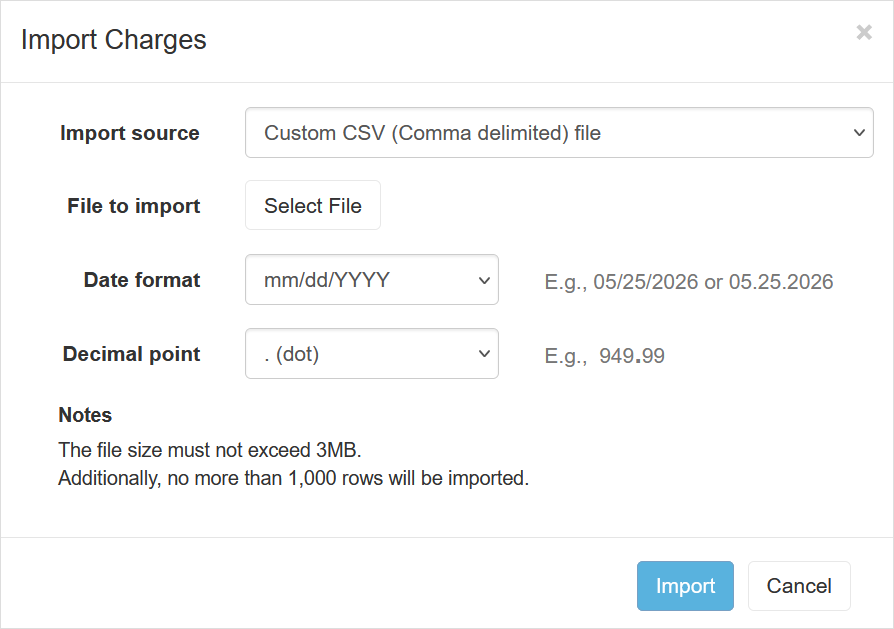
- Click the More menu in the toolbar and choose Import to open the import window.
- Click Browse to select the file .csv file you want to import. If the file is found and loaded, you’ll see a confirmation in green text.
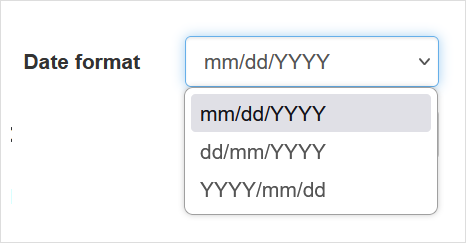
- Select the format you used in the file to import for dates, this will verify the import correctly sets the date:
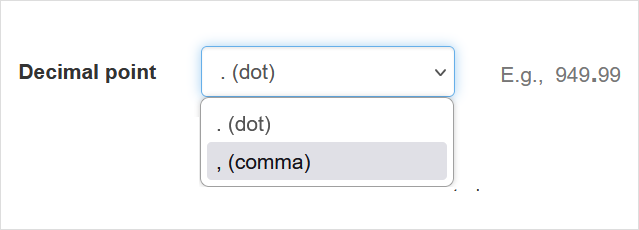
- Select the decimal point you used in the file to import numbers:
- Click Import to start importing your file.
- Once the email message is received, you should revisit the charges list to see the updates.
Troubleshooting
Once the import is complete, an email message is received with an import report. In cases where not all charges/time entries have been imported, the message will include an explanation of the reason why the specific charge/time entry was skipped.