Introduction
The charge export feature allows you to extract charge data from your Replypad workspace into a CSV (Comma-Separated Values) file. This file can be used outside the app for various purposes, such as importing data into accounting software that isn’t integrated with Replypad, analyzing it in Microsoft Excel or Google Sheets, and more.
Exporting charges
- Click the Three-lined (‘Hamburger’) icon on the top-right corner and choose Charges & Time log.
- This will display the list of your user charges.
- Filter the data to narrow down the list to the relevant charges you want to export (for example, by date range, customer account, type and more). Learn more about filtering and searching for charges.
- Click More > Export. In the window that opens, click Export Now to start exporting the data to a file.
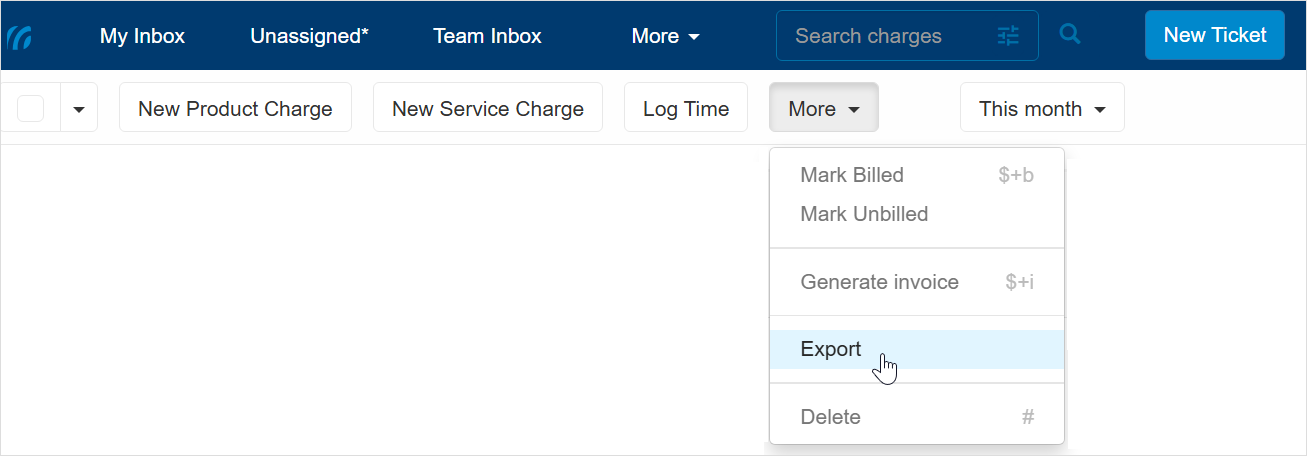
- Wait for the file to be prepared and downloaded. Depending on your device and operating system, you may be prompted to choose where to save the file.
Charge fields exported to the CSV file
| Date | The date when the work was performed or the product was sold. The date exported as YYYY-MM-DD. |
| Type | The line type:
|
| User | The nickname of the user associated with the service charge or time entry. |
| Start time | The work start time. Relevant for service charges and time entries. |
| End time | The work end time. Relevant for service charges and time entries. |
| Hours worked | Relevant for service charges and time entries. |
| Account name | The name of the customer account. |
| Billing Contract Name | The name of the billing contract name the charge is associated with. |
| Ticket Number | The number of the ticket the charge is associated with. |
| Ticket Subject | The subject line of the ticket the charge is associated with. |
| Item Name | The name of the associated product or service. |
| Quantity | Includes the number of units or hours to charge. The value of the charge Quantity – or – Hours to Bill (for time-based charges). |
| Quantity In Hours Flag | A flag indicating whether the value in Quantity represents hours – yes or no. |
| Description | The charge description. |
For users managing financial details, additional information is exported:
| Currency | The currency used, e.g. USD. |
| Price | Unit price or hourly rate (for time-based charges). |
| Total | The charge total. |
| Billable Flag | Indicates whether the customer should be billed for this line item. Possible values: Yes or No. |
| Billed Flag | Indicates whether the charge has been billed. Possible values: Yes or No. |
| Invoice Ref | For billed charges, this optionally contains the invoice number under which the charge was included. |