What are article categories?
Each article belongs to a selected category. Categories help organize articles by grouping content on similar topics together.
Only users with admin or power users privileges can manage article categories.
Create article category
- Click the Gear icon on the top-right corner and choose Article categories or press h then 3 (keyboard shortcut).
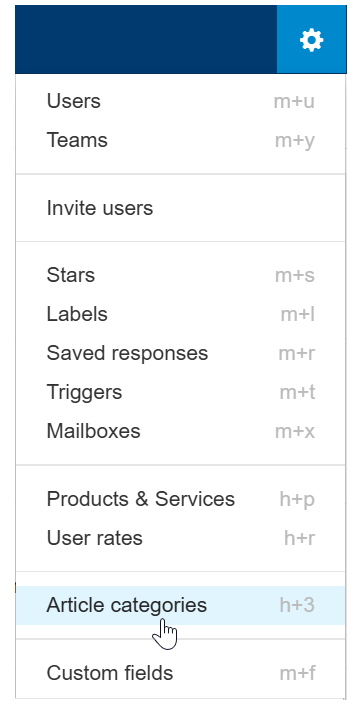
- Click the New Articles Category button.

- Enter the category name and click Save.
Set default category for new articles
Exactly one category serves as the default. This category is automatically assigned to new articles.
Click the Gear icon in the top-right corner and choose Article categories.
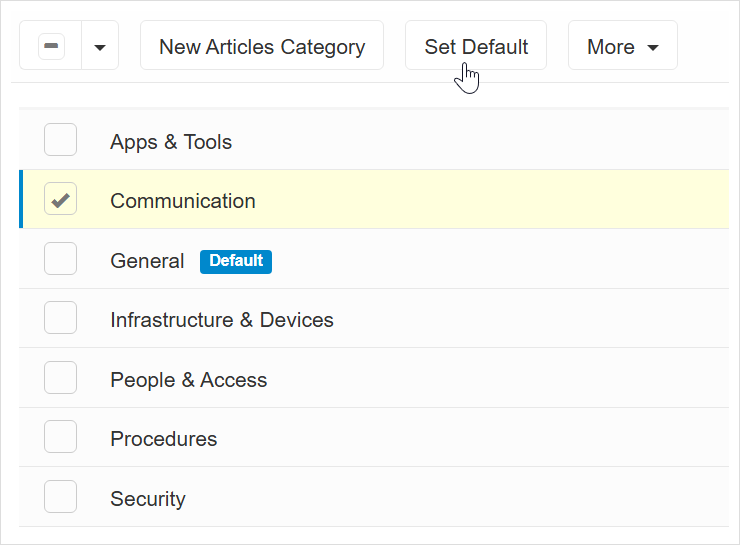
Select the category you want to set as default using the selection box on the left side of the category name.
Click the Set Default button in the top toolbar.
The chosen category will now have the “default” label next to it.
Delete articles category
Click the Gear icon on the top-right corner and choose Article categories.
Select the category you want to delete and from the More menu choose Delete (or press # as a keyboard shortcut).
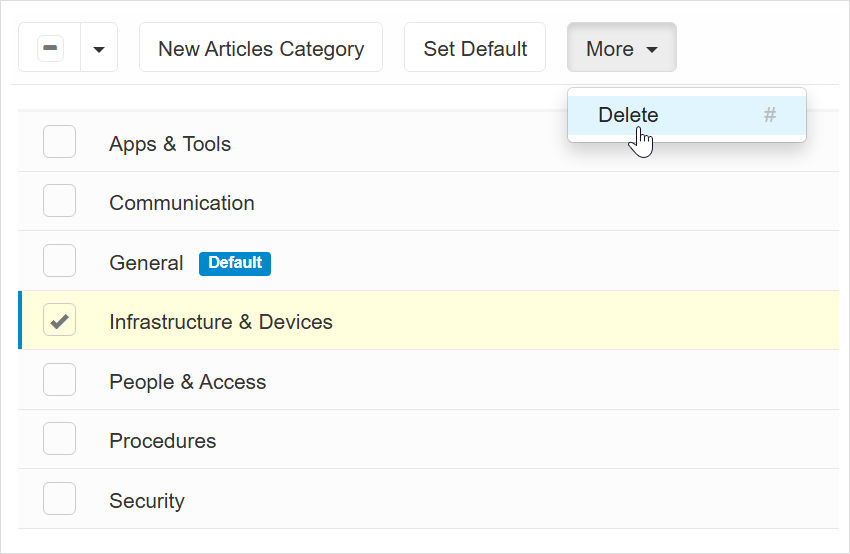
In the window that appears, click Delete now to delete.
The category should no longer appear in the list.
Rename articles category
Click the Gear icon on the top-right corner and choose Article categories.
Click the category you want to rename.
In the window that appears, edit the name.
Click Save to save your changes.