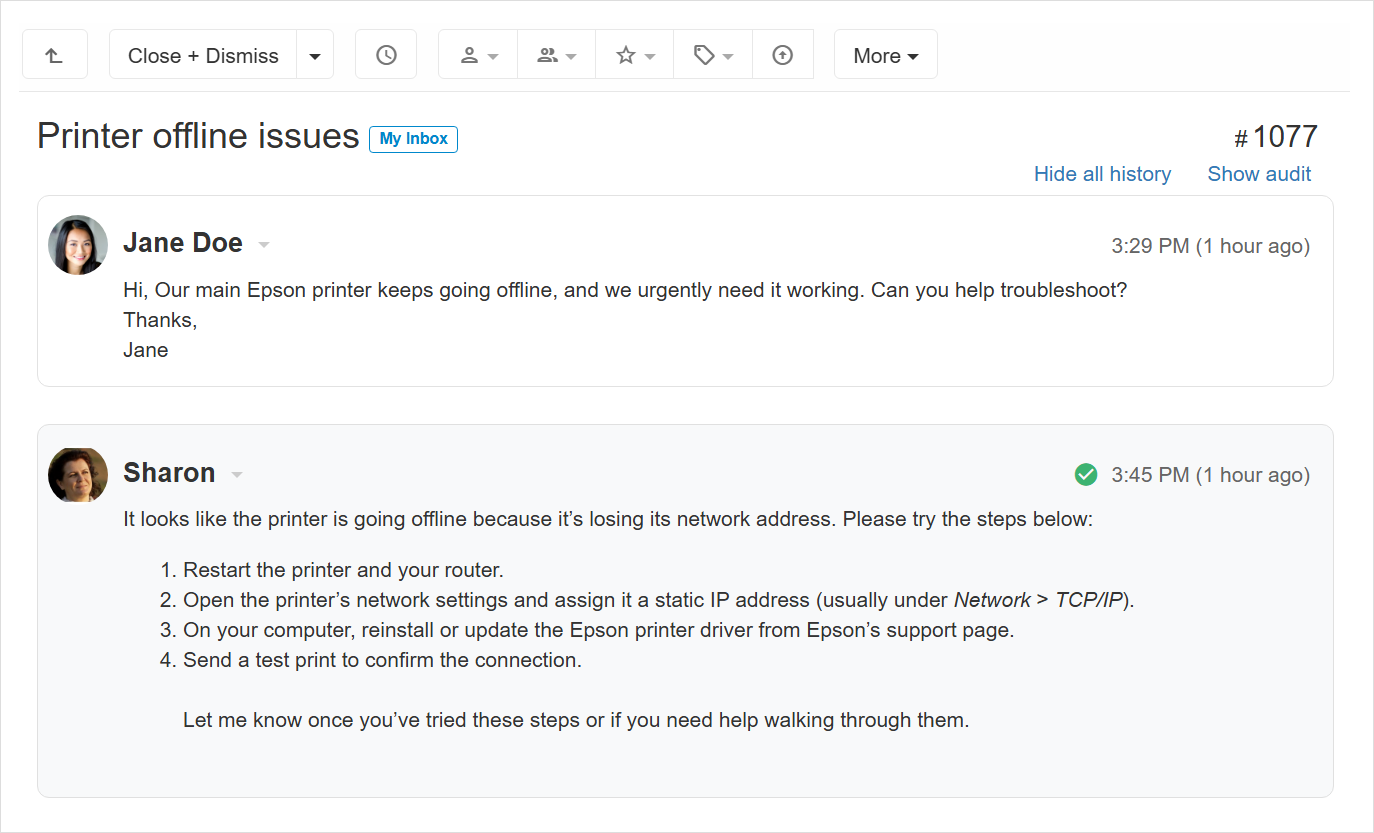
You can mark one or more messages as the ticket resolution. These messages will then be visually marked with a green checkmark icon.
Marking a message as a resolution helps you quickly identify what solved the customer’s issue, without having to read every message.
Marking a message as resolution
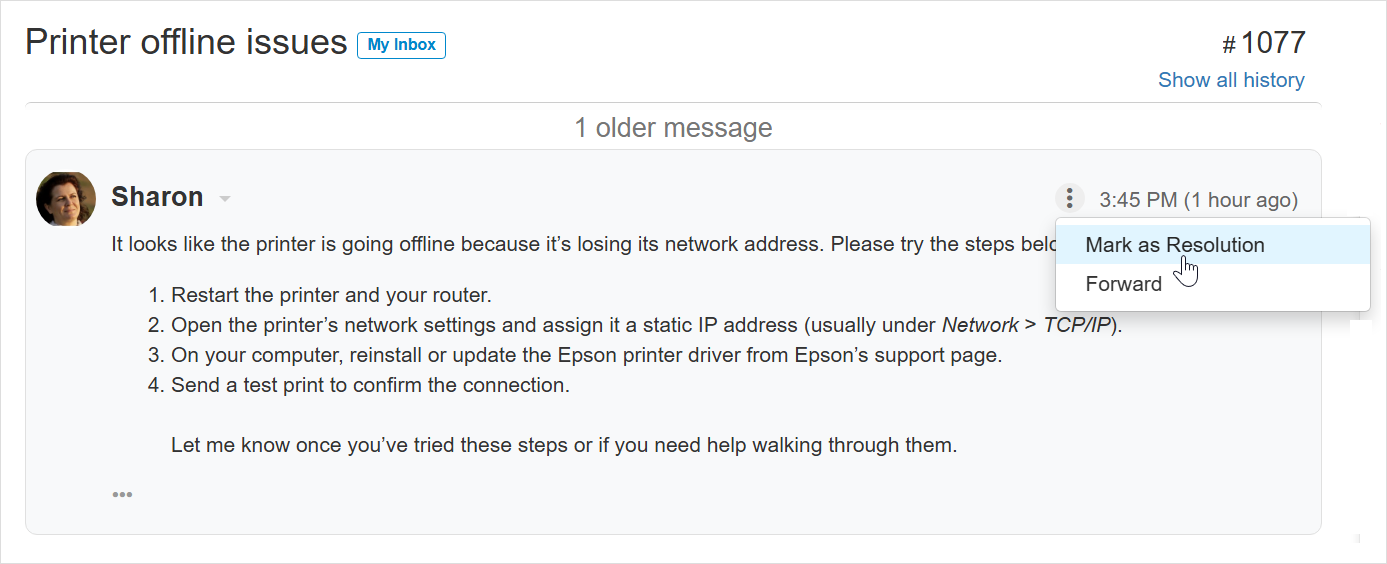
Hover over the top-right corner of the message.
Click the three-dots icon to open a menu.
Select Mark as Resolution.
Once a message is marked as resolution, a green checkmark icon  will appear at the top-right area of the message.
Unmarking a message as resolution
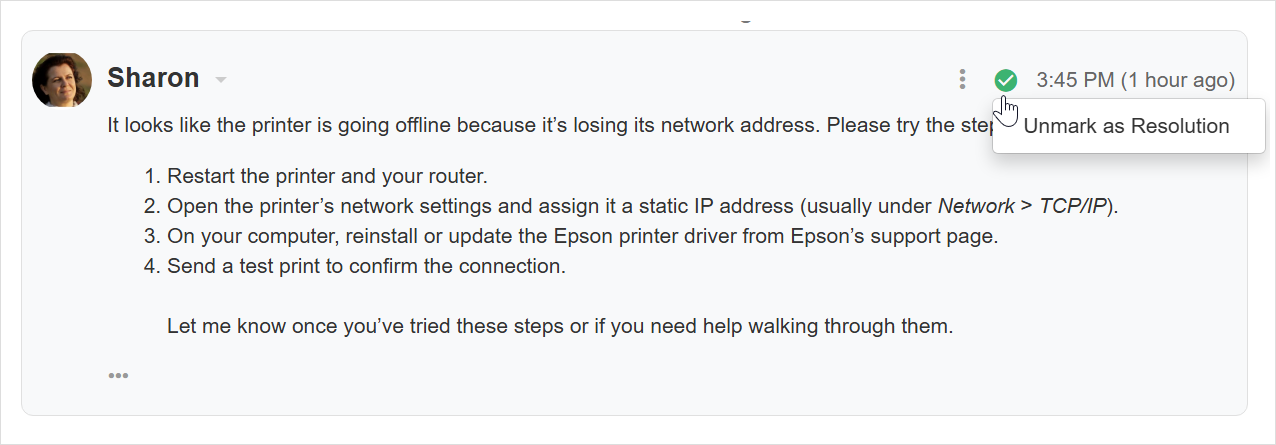
Hover over the top-right corner of the message and click the three-dots icon to open a menu.
Or-
Click the green checkmark icon
directly.
- Select Unmark as Resolution.
Depending on the user’s privileges, they may or may not be able to mark a message as the resolution in tickets that are not assigned to them.