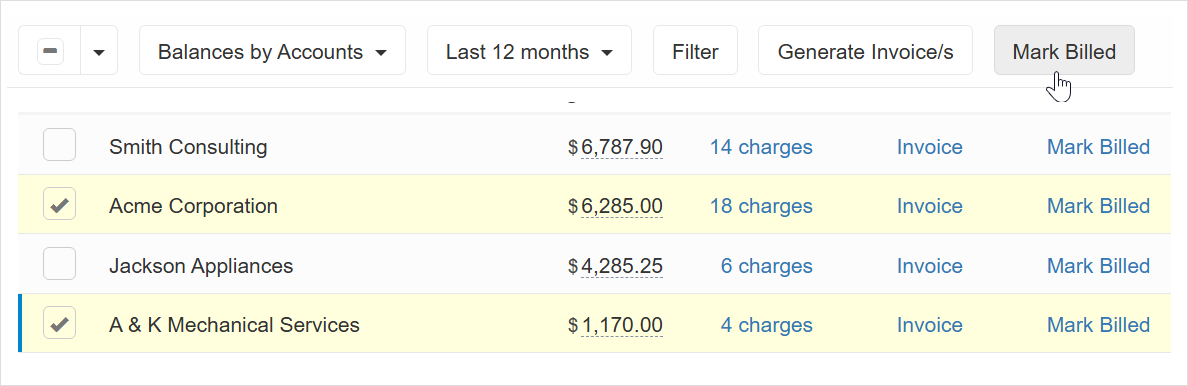
What are open balances?
With Replypad’s billing features, customer charges are regularly added by users for the services provided, products sold, and automatically for both new contracts and renewing existing ones.
These charges accumulate and create open customer balances, i.e., amounts that customers should be billed and invoiced for.
Charges that affect open balances are billable ones that have not yet been used for billing and invoicing.
You can further refine the billable charges included in the open balances calculation, such as by including only those from the last month.
Viewing open balances
To view open balances, click the Three-lined (‘Hamburger’) icon on the top-right corner and choose Open balances & Invoicing.
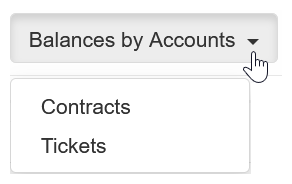
Open balances are displayed based on the level you select: customer account, contracts, or tickets.
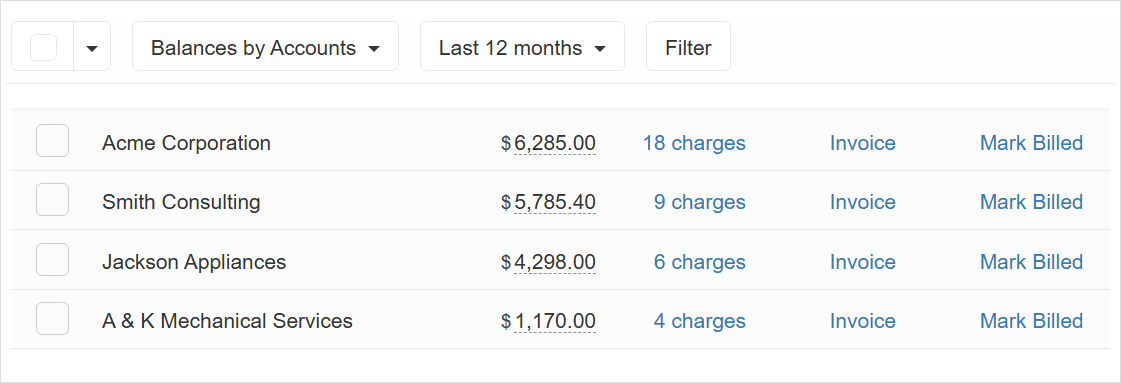
Balances by Accounts
With this level selected, you see one line for each customer with an open balance. It sums any charges associated with this account, regardless of the associated contract or ticket.Balances by Contracts
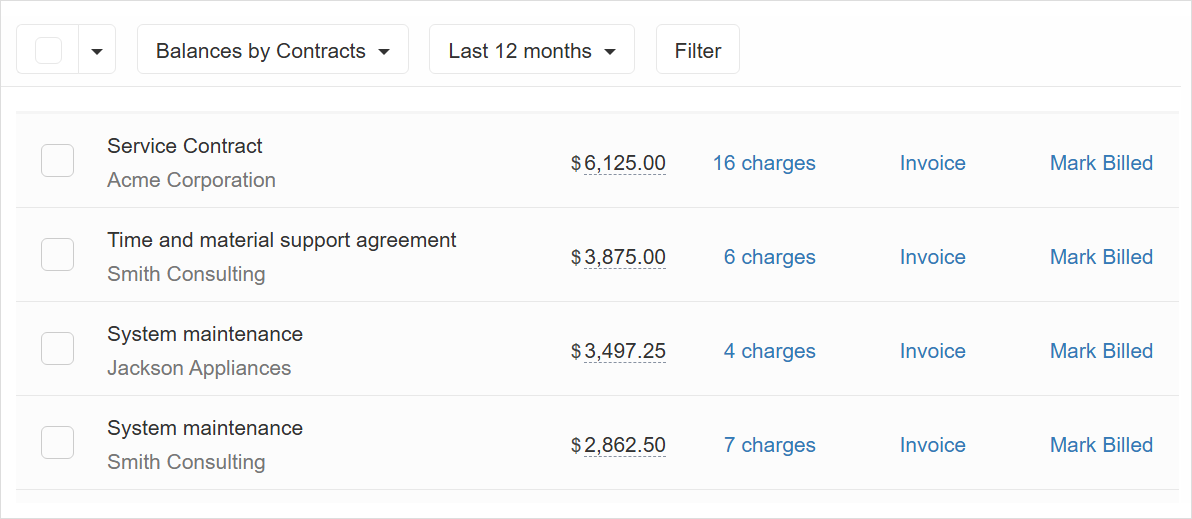
With this level selected, you see one line for each contract with an open balance. It sums any charges associated directly with this contract. The balances do not include charges associated with the same customer account if they are not directly linked to this contract.Balances by Tickets
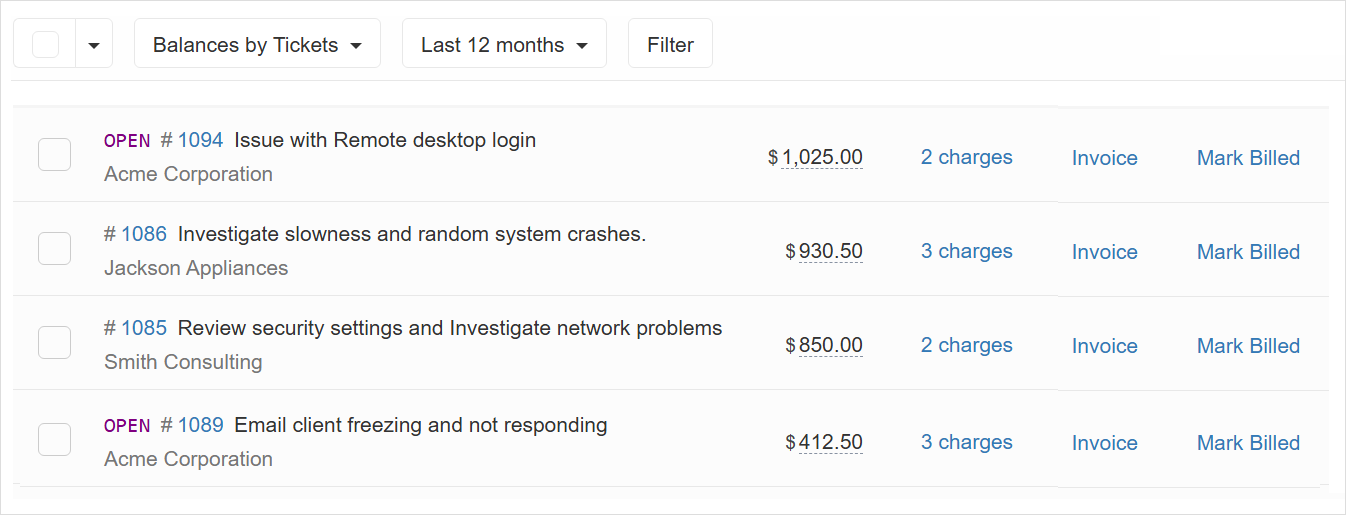
With this level selected, you see one line for each customer ticket with an open balance. It sums any charges associated with this ticket and the customer directly. In some cases, where charges under the same ticket are logged for different customers, the same ticket may appear more than once.
Working with the open balances list
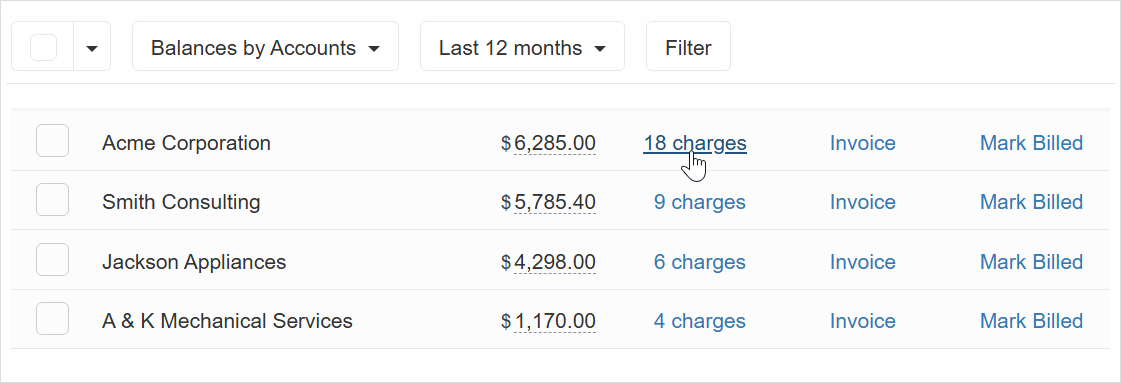
Each row shows the total of unbilled billable charges and how many charges make up that total.
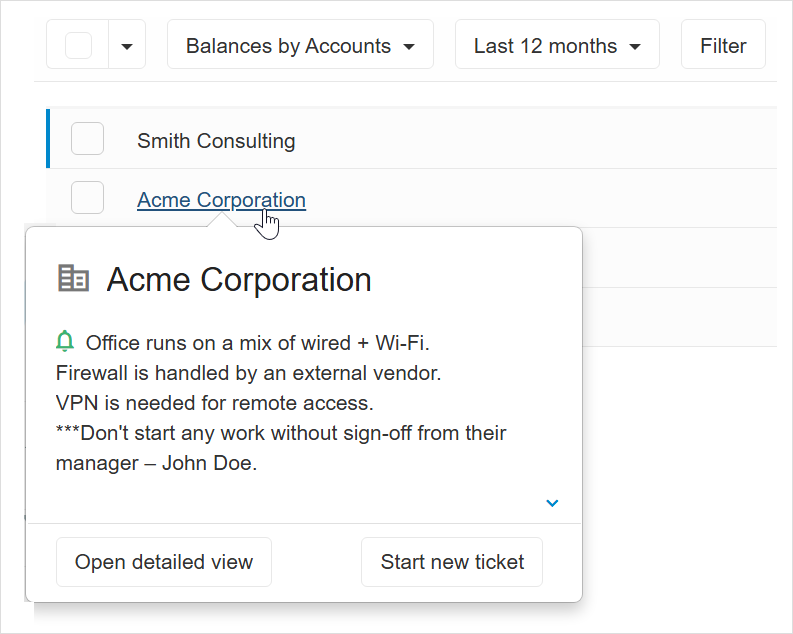
Click an account name to go to its details page, or hover over it to view the account popover.
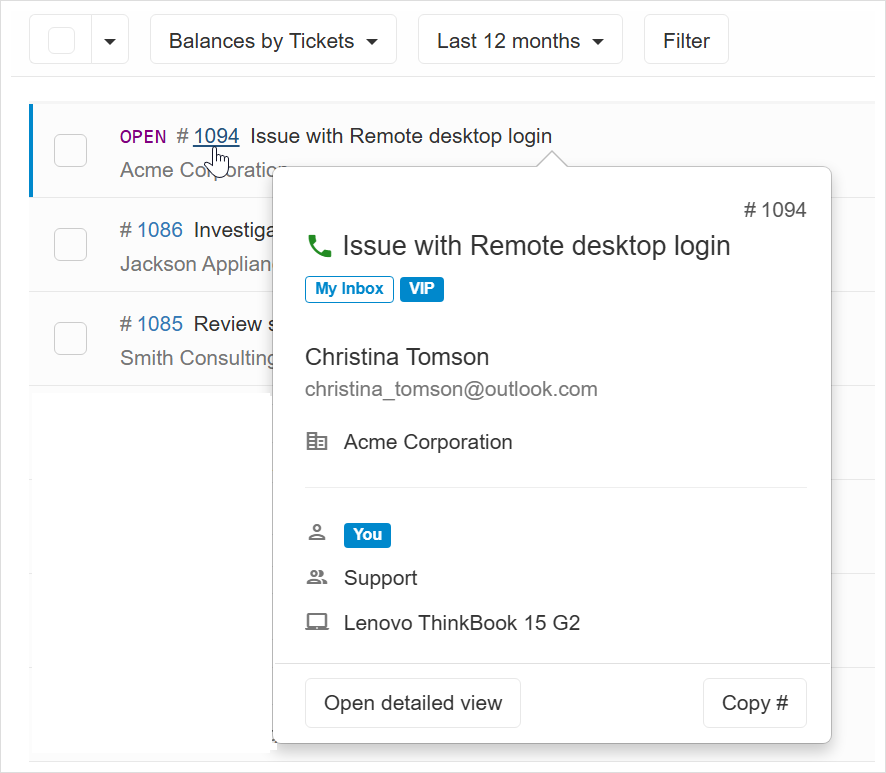
Click a ticket number to go to its details page, or hover over the ticket number or description to view the ticket popover.
Click the number of charges to view a list of charges that make up the open balance.
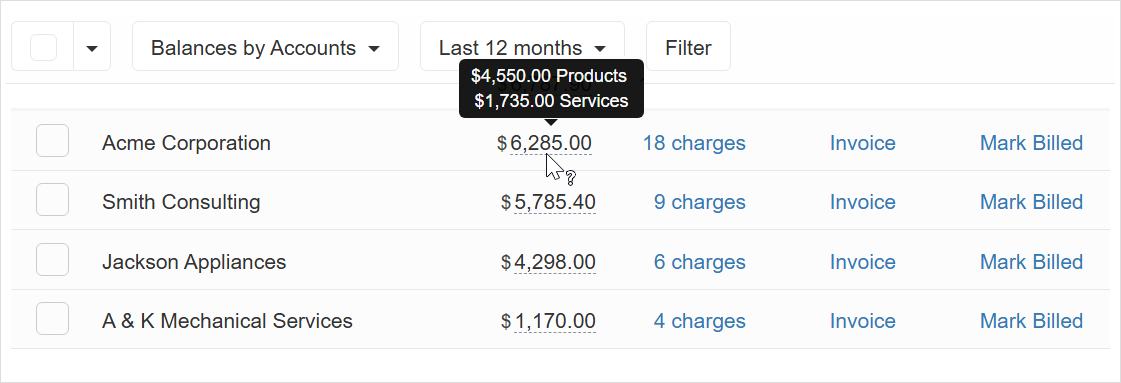
Hover over the open balance total to see how the balance is split between product and service charges.
Changing balance display level
By default, open balances are displayed at the customer account level. To change this use the Balances by Accounts dropdown at the top and select the desired display level.
Filtering charges by time
To include charges from a specific period, use the dropdown at the top.
The default period is This Year.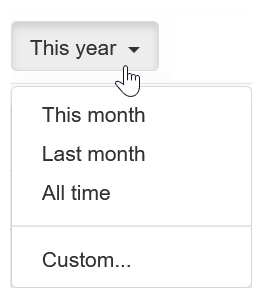
Advanced filtering options for charges to include
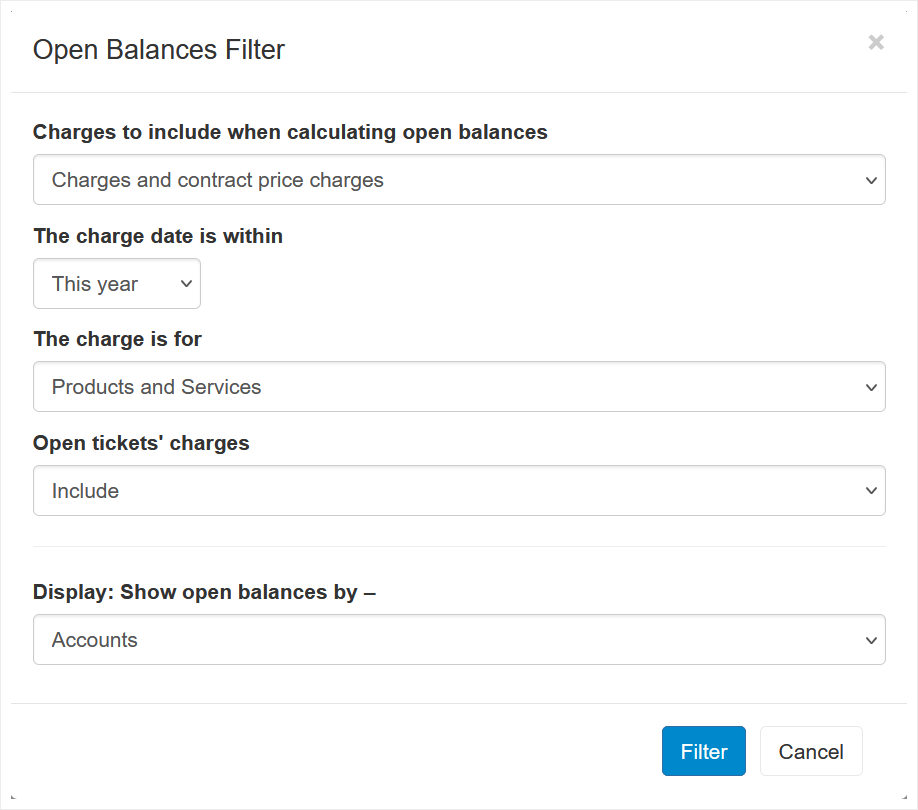
To refine the charges included in the open balances calculation, click the Filter button.
A window will open with the following options:
- Charges to include when calculating open balances:
- Charges and contract price charges.This option includes both regular charges and those automatically added to bill the customer for the contract price.
- Charges only.Only regular charges will be included.
- Contract price charges only.Only charges automatically added to bill the customer for the contract price will be included.
By the charge date.
- The charges is for –
- Products and Services.
- Products only.
- Services only.
Open tickets’ charges –
If you don’t want to include charges related to tickets that are still open, choose not to include charges from open tickets.
Generating invoices from open balances
Any open balance listed on this page can easily be invoiced to QuickBooks.
Invoices can be generated individually or in bulk.
To generate invoice/s:
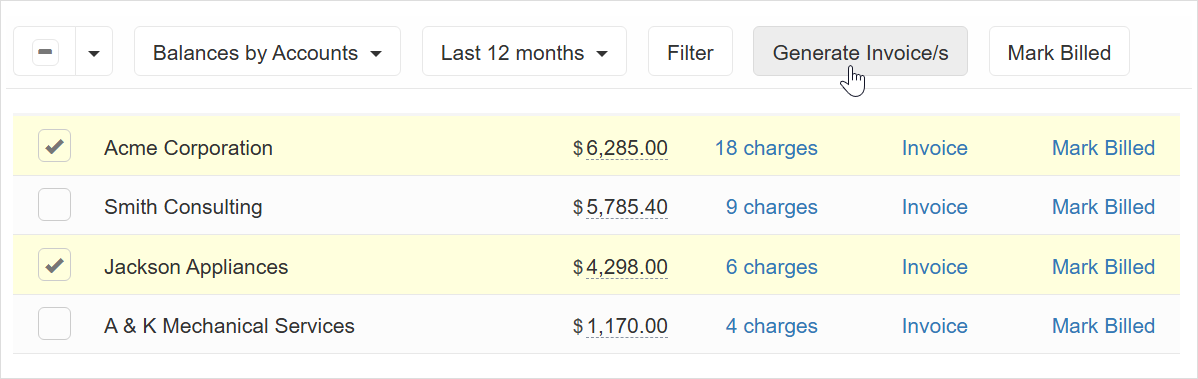
Use the selection box on the left side to select any open balance line you want to invoice.
Click Generate Invoice/s.
Or
In the displayed list, click Invoice within the open balance line to generate an invoice for that specific open balance line.
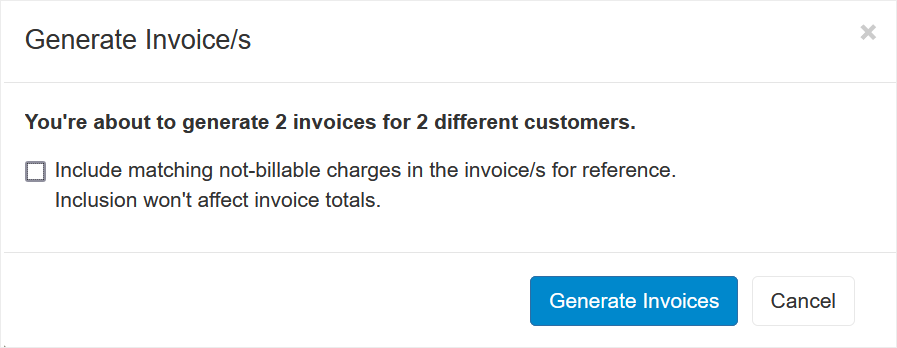
Optionally, select whether to include non-billable charges in the invoice(s) for reference. Inclusion will not affect the invoice totals.
Click Generate Invoices.
A separate invoice will be generated for each open balance line you selected.
Invoices in QuickBooks are generated under the corresponding customer record. Learn more.
Mark charges as billed
When invoicing to QuickBooks, the involved charges are automatically marked as billed. You can also manually mark charges as billed, which is useful if you do not want to include the charge in an invoice or if you have already processed it using your accounting software rather than through the QuickBooks integration.
To mark the charges in a row as billed, click Mark Billed in the open balance line.
Or –
Use the checkbox on the left to select the rows you want to mark as billed, then click Mark Billed in the toolbar or use the keyboard shortcut: $ then b.