Importing accounts in Replypad
The import feature allows you to quickly import accounts into Replypad using a CSV (Comma Separated Values) file, without the need to manually add them one by one.Prepare the CSV file for import
To import your accounts you should prepare the accounts you want to import in a CSV file. CSV stands for Comma Separated Values, and it is a plain text file. Each row of the file is an account record which consists of one or more fields, separated by commas. The first row in the file is the fields heading or names, and the other rows contain the fields data or values, i.e., the accounts data to import.Field names are:
- Account Name
- Domain1
- Domain2
- Domain3
- Domain4
- Domain5
- Phone1
- Phone2
- Phone3
- Phone4
- Phone5
- Phone1Label
- Phone2Label
- Phone3Label
- Phone4Label
- Phone5Label
- AddressLine1
- AddressLine2
- AddressLine3
- City
- State
- ZIP
- Country
- Status
Supported values:
For Inactive status: inactive, not active, no, N, false, negative.
For Active status: Active OR just empty value - Banner
Important to know
The Account name column is mandatory and must appear in the file in order to identify the account.
Maximum length: 150 characters. If the imported value exceeds this limit, it will be truncated to 150 characters.
Banner field – maximum length: 4,000 characters. If the imported value exceeds this limit, it will be truncated to 4,000 characters.
Not all columns need to appear in the file. For example, you can include only Account Name, Domain1 and Domain2 out of possible 5 domains.
Not all fields of all accounts need to have values – you can simply leave a field empty in the file (it will show a comma in the CSV).
- If the Account Name already exists in your workspace, this row in the CSV file will be skipped and the account will not be imported.
- If a Domain Name of an Account to import already exists for an Account in your workspace (a domain name must be unique in the workspace), this row will be skipped and the account will not be imported.
- The daily import limit is 15,000 accounts per day. This is also the rows limit per file.
- The file size must not exceed 3MB.
Example
Below is an example of a CSV file that can be imported:
Account Name,Domain1,Domain2,State
ACME business,ACMEmydomain.com,ACMELTDmydomain.com,NJ
ACME1 business,ACME1mydomain.com,CA
Who can import?
Workspace administrator and Power Users, that have access rights to accounts and contacts.Import your accounts
- To import accounts you have to be a workspace administrator or a Power User.
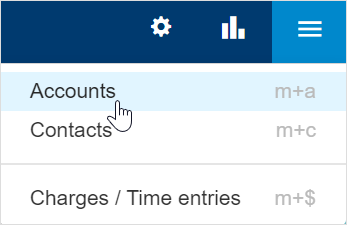
- Click the Three-lined (‘Hamburger’) icon and select Accounts to open the accounts list.
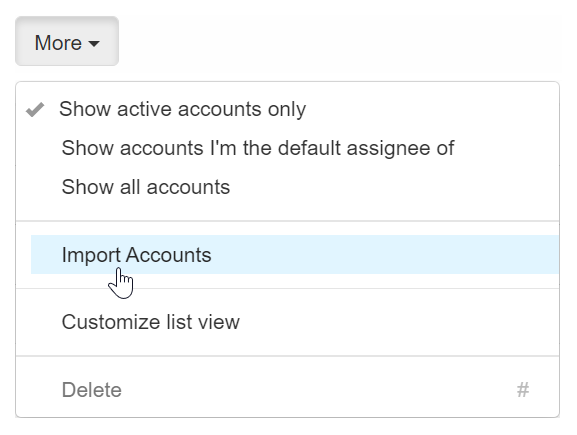
- Click the More menu in the accounts toolbar and choose Import Accounts to open the import window.
- Click Browse to select the file .csv file you want to import. If the file is found and loaded, you’ll see a confirmation in green text.
- Click Import to start importing your file.
- Once the email message is received, you should revisit the Accounts list to see the updates.
Troubleshooting
Once the import is complete, an email message is received with an import report. In cases where not all rows have been imported, the message will include an explanation of the reason why the row was skipped. Below is a list of messages you might see in the report.If you encounter a failure to import a row, please check the following:
Message: Domain Name is not valid or not properly formatted.
How to fix: The Domain Name of a specific account is not properly formatted. Find the row, fix the domain name and reimport this line.
Message: Domain Name is already set for an account.
How to fix: a Domain Name that was provided in the file is already defined for an account in your workspace. A domain name can only be listed once in your workspace.
Message: ‘Account Name’ column not present in the CSV file.
How to fix: Make sure your columns include Account Name because this is a mandatory field for accounts and must be included in the import file.
Message: File type not in CSV format.
How to fix: Make sure you have the first row with field names, comma delimited, and that all the required fields are included in the columns headings.
Message: Maximum rows 15,000.
How to fix: The maximum for import is 15,000 rows per file (not including the header). You can always split large .csv files into smaller ones. You can also contact us to increase your daily import limits.