This article explains the main concepts of Team Inbox.
To learn about actions you can perform, see Working with Team Inbox .
To learn about actions you can perform, see Working with Team Inbox .
What is the Team Inbox?
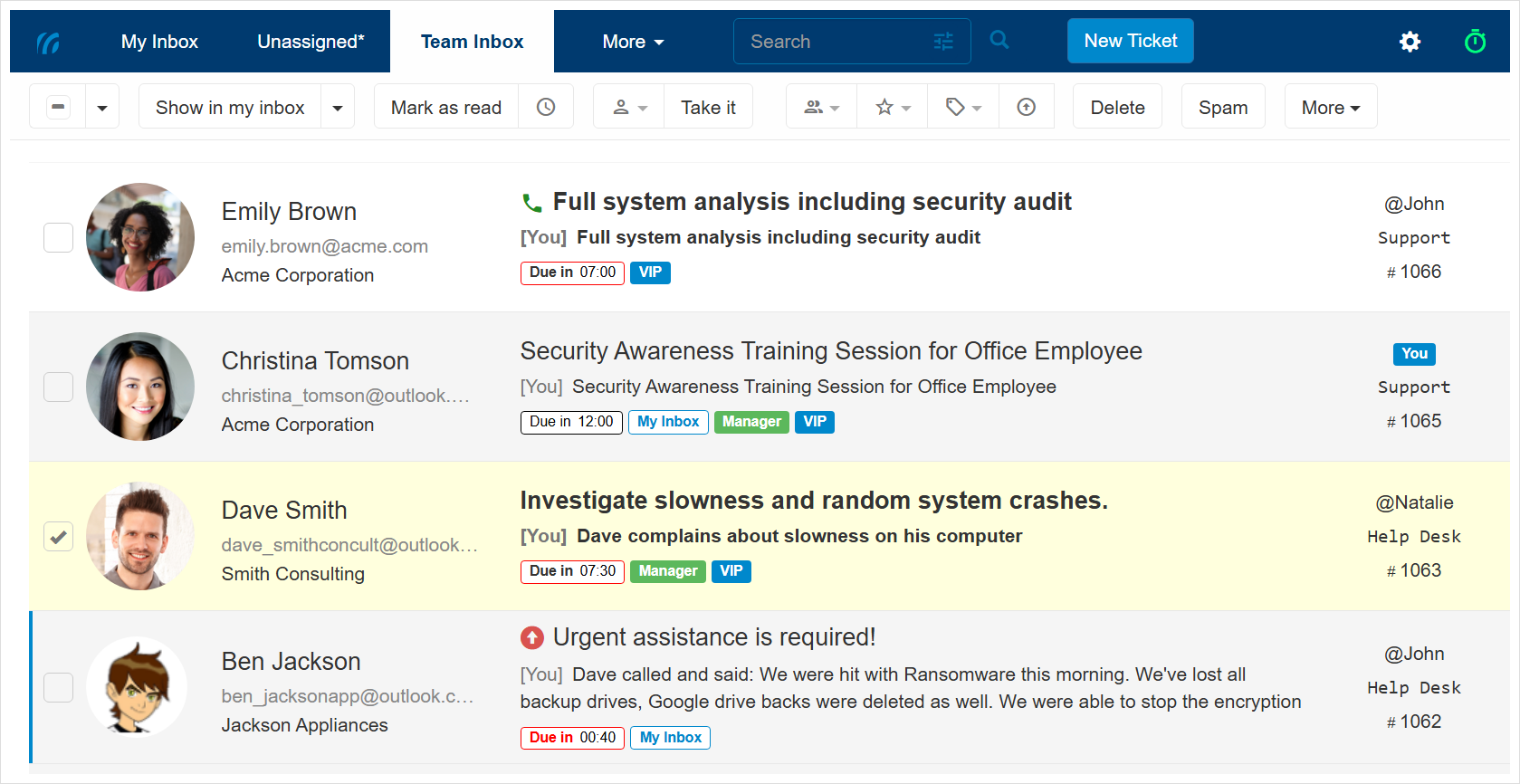
The Team Inbox is where you see tickets that are relevant to the whole team, whether they are assigned or unassigned. It is where you work as a team, rather than individuals.Tickets stay in the inbox as long as they are open, and they get removed automatically from the Team Inbox when they get closed.
When to use the Team Inbox?
Team inbox is helpful when you want to:- Monitor all open tickets. Make sure nothing falls through the cracks, and perhaps follow or join their discussion.
- View new unassigned tickets.
- Fill in for other team members. Take care of their tickets when they are out, perhaps because they have ended their shift, or if they call in sick, etc.
- Review the work of new team members. Perhaps provide some guidance.
- And more…
When does a ticket reach the Team Inbox?
Tickets reach the Team Inbox in the following cases:- When a new ticket is created.
- Automatically from an incoming email.
- By a customer in Replypad.
- By a user (i.e. team member) in Replypad.
- When a ticket has a new message posted to it.
- When a customer or third party replies to a ticket.
- When a user posts a public reply, without closing the ticket.
- When a user posts an internal note.
- When choosing to show the ticket in the Team Inbox manually.
- This may include closed tickets.
When is a ticket removed from the Team Inbox?
A ticket is removed from the Team Inbox when it gets closed. Tickets appear in the Team Inbox as long as they are open. They will be automatically removed when they are closed.You may have a closed ticket showing in the Team Inbox because of a previous request to explicitly display it. In this case you can remove the ticket from the Team Inbox manually.
Working with Team Inbox
Once a ticket appears in the Team Inbox, it becomes part of the tickets the team needs to take care of. It helps you go over the tickets and check that nothing falls through the cracks.You can go over the tickets and perhaps assign the ones that are not assigned yet, post internal notes or public replies, set the ticket’s priority, labels, or team, and more.
You can learn more in Working with Team Inbox.