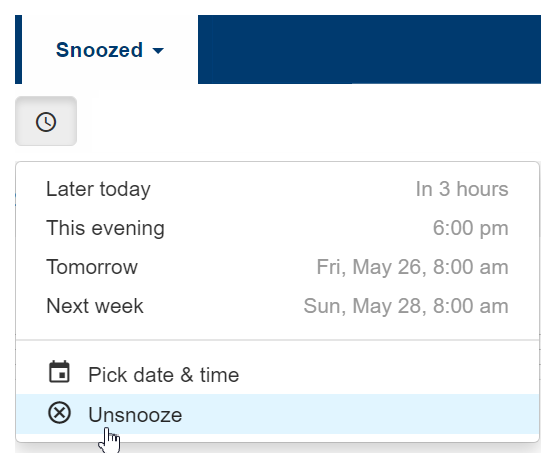
Snoozing a ticket allows you to postpone handling the ticket for later. When the time is due, the system pushes the ticket to the top of your inbox (aka “My Inbox”) as unread, so you can’t miss it. Postponing a ticket is useful in various situations, such as when you need to wait for a resource or if you are going through a stressed day and want to postpone some stuff for later.
Snooze features:
Snooze features:
- Set the snooze time.
Choose the time from the predefined options or set a custom time. - Replypad pushes tickets to your inbox when the time is due.
Tickets are pushed to the top of your inbox as unread. A “Snoozed” label in the right-most column until you perform an action on the ticket. - Snoozed ticket can be unsnoozed.
You can unsnooze a ticket if you need to respond to it sooner than you thought. - Automatic unsnoozing. When a ticket is pushed to your inbox as a result of events that push it to the top of your inbox, it is automatically unsnoozed. For example, when a customer replies to a ticket assigned to you or you follow it.
- View all snoozed tickets.
A dedicated ‘Snoozed’ view displays all your snoozed tickets. This way you can find a ticket you need to respond to sooner than you thought. - You can snooze any ticket.
A ticket doesn’t have to be assigned to you or in your inbox in order to snooze it. Once snoozed, it will appear in your inbox when time is due.
Snoozing a ticket applies only to you, the user that performed the snooze. Note that if the ticket was in your inbox when snoozing, the system will hide it from the inbox and show it only in the ‘Snoozed’ view while snoozed.
How to snooze a ticket from the details window
- Open the ticket you want to snooze.
- Click the Snooze (‘clock’ icon) in the toolbar.
- Choose a time from the predetermined times or use the Pick date & time option.
- The time you choose is when the system will push the ticket to the top of your inbox.
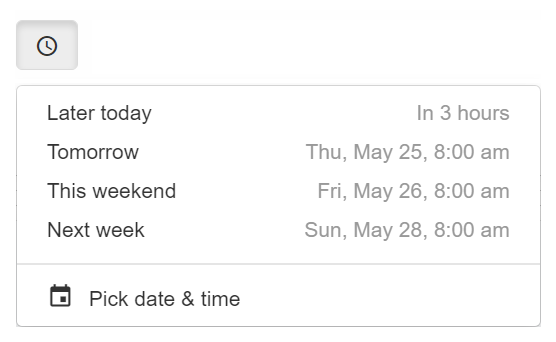
You can open the snooze options by pressing b on your keyboard from the tickets details view.
How to snooze tickets from the tickets list
- Select the ticket/s you want to snooze from the list using the checkbox.
- Click the Snooze (‘clock’ icon) in the toolbar.
- Choose a time from the predetermined times or use the Pick date & time option.
- The time you choose is when the system will push the ticket/s to the top of your inbox.
You can open the snooze options by pressing b on your keyboard after selecting the ticket in the list.
How to view all snoozed tickets
You can open the Snoozed ticket list by pressing g+b on your keyboard.
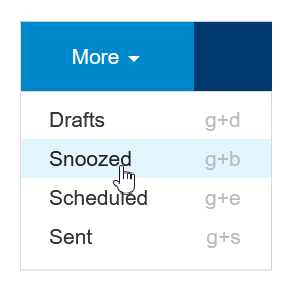
- Click the More menu in the blue toolbar at the top.
- Select Snoozed.
- All of your snoozed tickets will appear in the list.
- Hover the Snoozed ‘clock’ icon below the ticket’s subject to see the snooze date and time.
How to unsnooze a ticket from the details window
- Open the ticket you want to unsnooze.
- From the details view, click the “Unsnooze” link on the window’s top right corner..

How to unsnooze tickets from the Snoozed list
You can open the Snoozed tickets list by pressing g+b on your keyboard.
- Click the More menu in the blue toolbar at the top.
- Select Snoozed.
- All of your snoozed tickets will appear in the list.
- Select the ticket/s you want to unsnooze.
- Click the Snooze (‘clock’ icon) in the toolbar and select “Unsnooze”