This article talks about the interface elements you’ll see while working with a specific comment within a Replypad ticket.
Going into a comment, you can see details about this comment and perform advanced options. Let’s have a look.
Going into a comment, you can see details about this comment and perform advanced options. Let’s have a look.
Where do I see ticket comments?
Going into a ticket, on the main display area you will see the latest comment appearing. Older comments will be collapsed and you can click the line where it says “X older message”. This will expand the older comments as well.Comment actions
- Hover over the message area and click the three-dots icon:
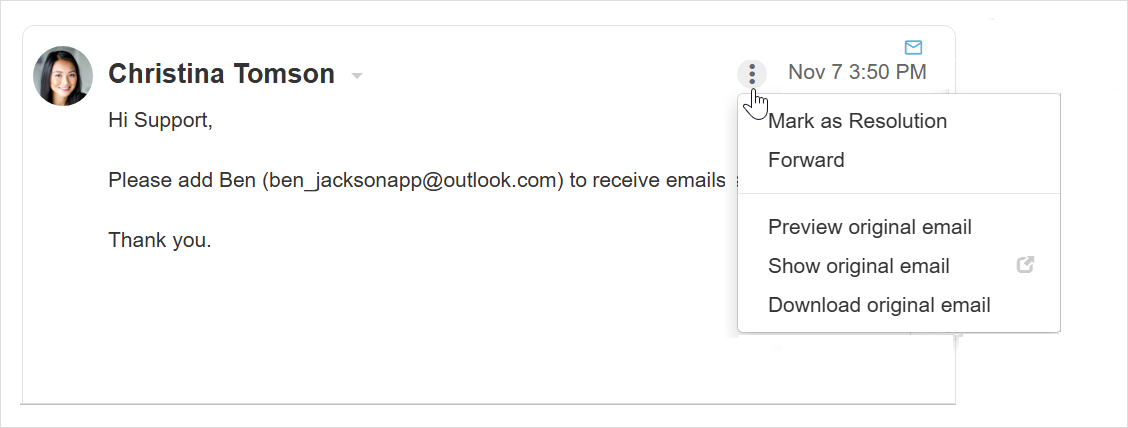
- Mark as Resolution – Mark the message as the resolution (additional messages can also be marked as resolutions).
- Forward – Is how you forward a specific message, rather than the entire ticket conversation.
- Preview original email – You can preview the original header and body of the inbound email that created this ticket message, directly within the app.
- Show original email – Select to open the original email header and body of this message in the new tab.
- Download original email – Select to download the original email (MIME format) as an .eml file.
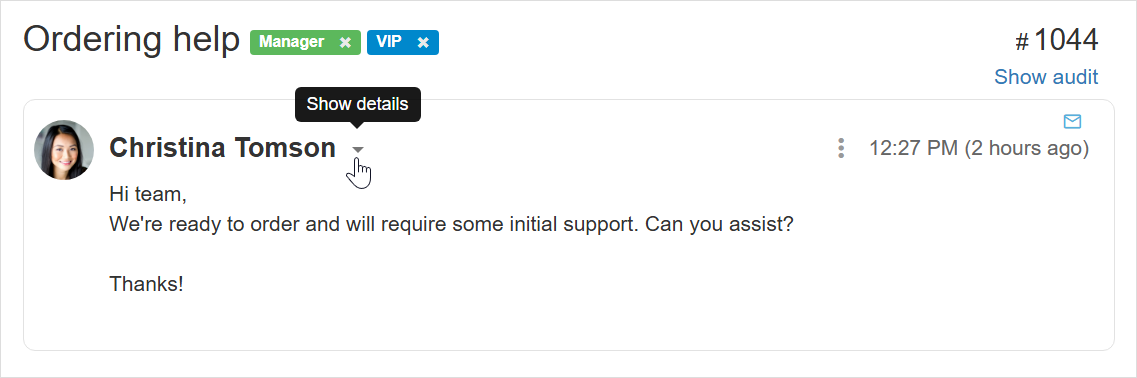
- Show details – While viewing a specific message, you can click the small arrow next to the customer’s name (hovering will display “show details” link) to expand the details section of this message.
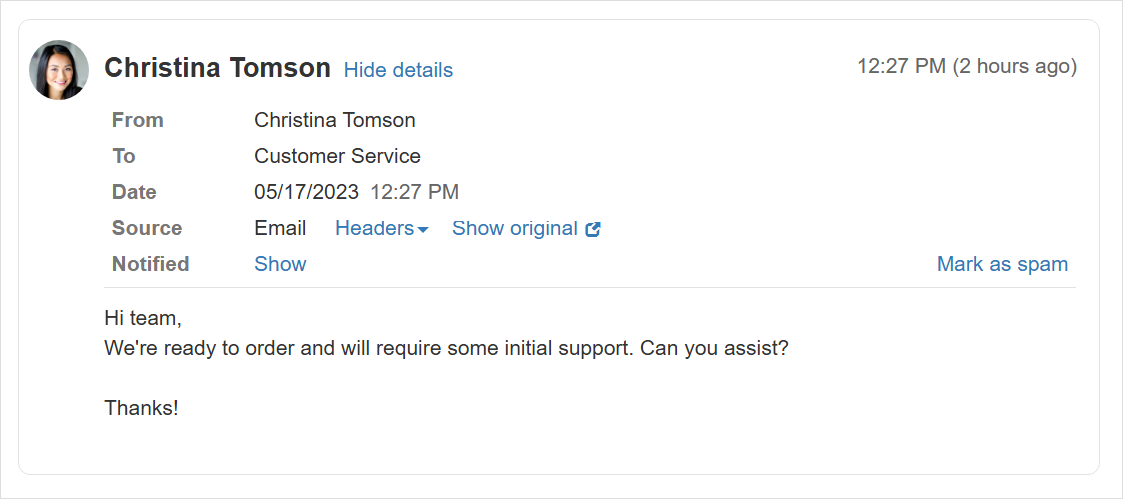
- From – Shows who sent this comment
- Date – Shows the date the message was received. Clicking the arrow will show the exact date and time it was initially created and last time it was edited.
- Source – Shows the source of this message.
“Replypad” means this message was posted by a user in the app.
“Email” means it came from outside, in which case you have more options – see below. - Notified – Shows which To / Cc recipients have received this message (when it got posted) and the ticket subject at the time the message was sent.
- Mark as spam – This will mark the message as spam and will hide it within the ticket thread. Spam messages can be viewed from the main More menu under Spam.
- Source field options:
- Headers – For message that come from a source outside of Replypad, you may want to see the original headers. Click the “Headers” link near the Source field to show the original email header.
- Show Original – For message that come from a source outside of Replypad, you may want to see the original message. Click the “Show original” link near the Source field to open the original email header and body of this message.
Note: Another way to view the original message is while hovering over the customer name you can click the envelope that appears on the right to see the original email.