This article explains the main concepts of My Inbox. To learn about actions you can perform, see Working with My Inbox .
What is My Inbox?
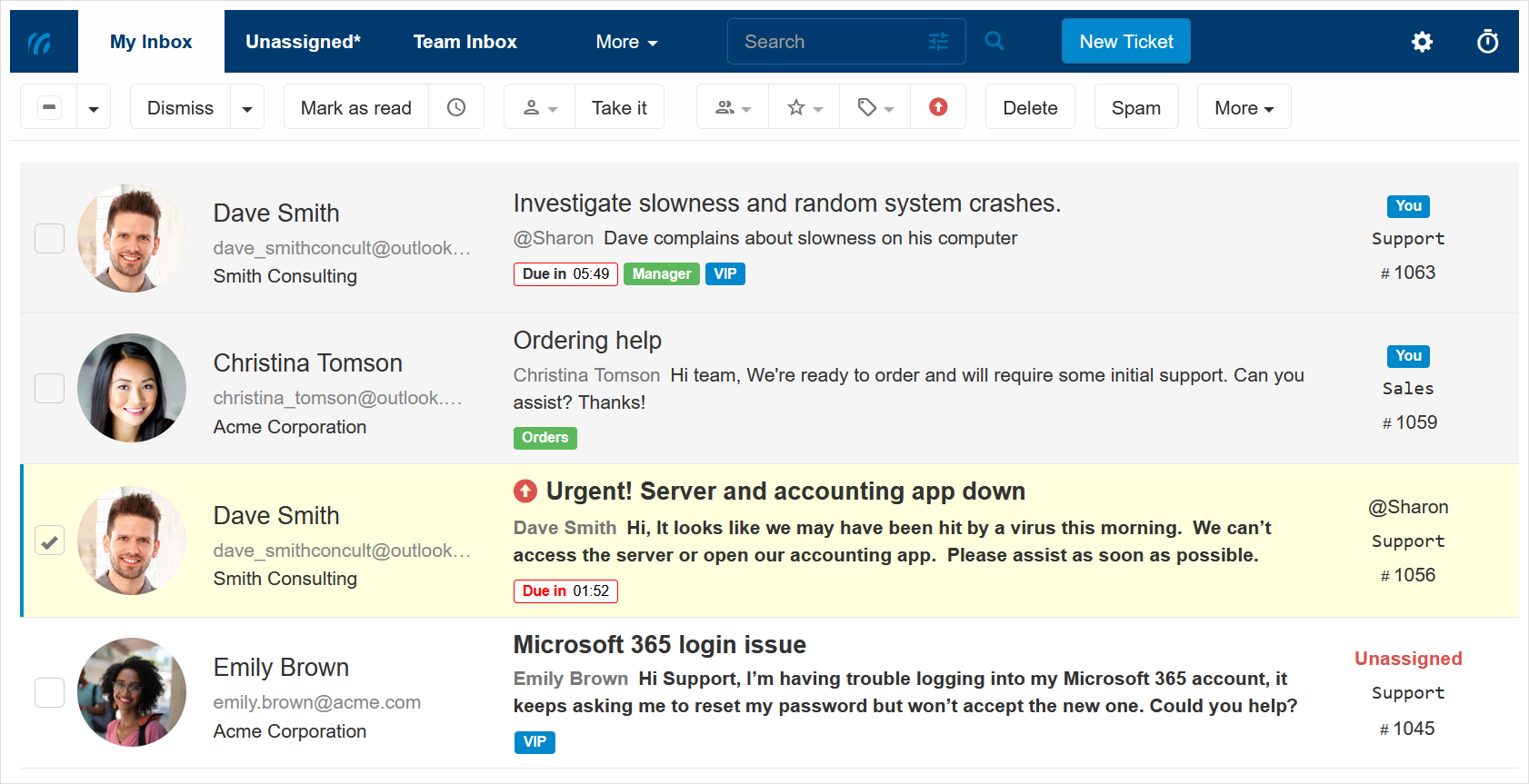
My Inbox is your main working area. This is where you see all the tickets and updates that are relevant to you. Your inbox helps you stay focused and be on top of everything you need to be involved in, in one place.You can see it as your main “to-do list”, where only you can dismiss (remove) a ticket from your own inbox when you are done working on it.
Tickets in your inbox may be assigned to you or assigned to someone else, in case you are just following the ticket, or being asked for advice.
When does a ticket reach My Inbox?
Whenever a ticket is created or has a new post, and you are the assignee or a follower for this ticket, it will be pushed into your inbox. You can also explicitly add a ticket to your inbox without following it.A ticket reaches your inbox in the following cases:
- A ticket is being assigned to you (also if you create it).
- An internal note or public reply was posted to a ticket assigned to you or followed by you.
- A reply was posted by the customer or a third party to a ticket assigned to you or followed by you.
- A ticket that is assigned to you was reopened.
- You chose the Show in My Inbox option.
- You snoozed the ticket.
When does a ticket get removed (dismissed) from My Inbox?
Only you can remove a ticket from your inbox by dismissing it. When you dismiss a ticket it is removed only from your inbox. It does not change the status of the ticket, unless you choose to change the status while dismissing, as explained below.A dismissed ticket may be:
- Assigned to you. If the ticket is assigned to you, it must be is status Closed in order for you to be able to dismiss it from your inbox. If it is still open, you must close it first. You can close a ticket by changing its status to closed before or while dismissing, or by using the “Close” option while posting a public reply.
- Not assigned to you. If the ticket is not assigned to you, you can dismiss it from your inbox at any time, whether it’s closed or not.
Working with My Inbox
Once a ticket reaches your inbox (i.e. it’s displayed under the My Inbox view), it becomes a part of the list of tickets you need to take care of. You can go over the tickets, post internal notes or public replies, change priority, labels, or team, reassign the ticket, close the ticket, dismiss from your inbox, and more.You can learn about all actions you can perform from My Inbox in Working with My Inbox .