What are internal notes?
Internal notes are messages you can post in a ticket, which let you discuss things with other team members behind-the-scenes, without your customer’s involvement. You may also use internal notes to document or summarize vital information about the ticket.
Internal notes appear as part of the ticket. However, as opposed to public replies, internal notes can be posted and seen only by users of your team. Internal notes are never sent to or viewed by the people listed in the To and CC (usually your customer).
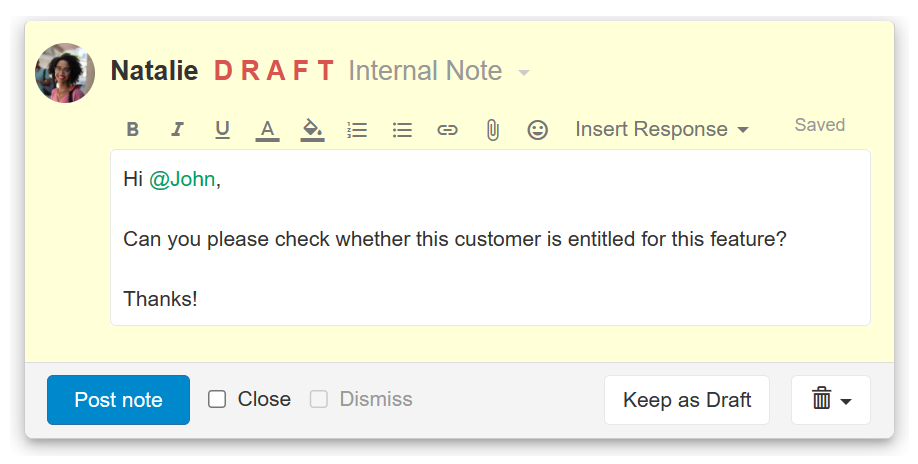
Internal notes are visibly different from public replies and appear with a different color and the “Internal Note” indication in the note’s header.
Who gets notified about the internal note?
Posting an internal note will send an email notification to the followers and assignee (if they choose to receive email notifications), and will push the ticket to the top of their inbox, and to the top of the Team’s Inbox. The ticket will not be pushed to the top of the inbox of the person who posted the internal note.
Customers are never notified about internal notes.
@Mention users in internal notes
A quick way to add users as followers to the ticket is by mentioning them using the @ symbol in the text. @Mentioning them will automatically add the user as a follower to the ticket. Learn more in Mentions.
Post Internal Note
To post an internal note, you should be in the ticket you want to add the note for.- To open the internal note editor, press t keyboard shortcut or click the internal note link from the bottom of the ticket. You will notice the editor changes the color of the frame to indicate this is an internal note.
- Edit the note as you need. You can use the editor’s tools on the top part of the editing area. You can also use Saved Responses which can be prepared in advance.
- You can attach files and images using drag-and-drop, or by pressing alt then a keyboard shortcut, or by using the Attach icon in the toolbar. Dropping an image on the edit area will add the images inline. Inline images are optimized so they won’t exceed the optimal size for sending and displaying in the app.
- Click the Post note button or use the Ctrl + Enter keyboard shortcut to post the note.
- Make sure you choose the correct options whether you want to close the ticket or dismiss it or both.
Start a ticket with an internal note
You can start a new ticket with an internal note as opposed to a public reply.
Starting a ticket with an internal note has many usages, such as:
- Leaving a phone call message from a customer and assigning it to the person the caller was looking for.
- Internally documenting a phone call or meeting you held with the customer.
- Discussing internally an issue with the customer without customer involvement.
- Assigning tasks to yourself or to someone else in the team.
Starting a ticket with an internal note will not send an email to the customer, nor will they see the ticket when they log into Replypad online.
If you later post a public reply to the ticket, it will behave as always and will send the email to the customer and display it online to the customer when they log into the workspace. All internal notes are never visible to the customer.
To start a ticket with an internal note:
- Click New Ticket in the top toolbar or press c on your keyboard.
- Select the Staff only (internal) option.
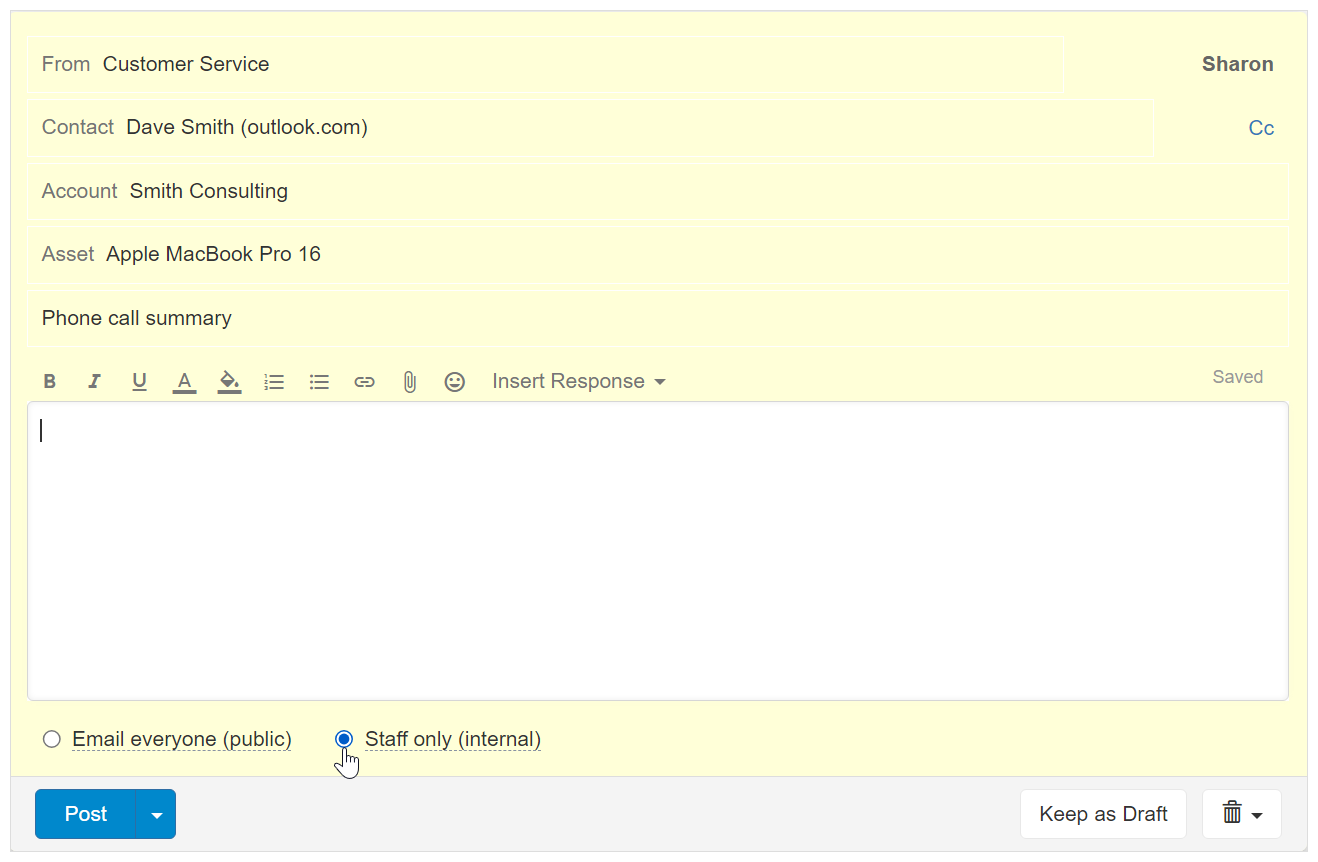
- You will notice the editor changes the color of the frame to indicate this is an internal note ticket.
- Follow the new ticket steps to complete the ticket creation and send it.
- The ticket will appear in the relevant people on your team, and will not be shared with the customer, until a future time when a public reply is posted under this ticket.
Post internal note using triggers
Triggers are a set of user defined rules that help you automate your work.You can use triggers to automatically post an internal note to a ticket, when the condition you define is met. For example, if a ticket is created for a specific account, then post an internal note “Reminder – always consult with Dan before replying to this customer”.
See Post internal note using triggers for a detailed usage example.
If you are new to triggers, we recommend on reading understanding triggers first.