What are scheduled tickets and public replies?
You can schedule your tickets and public replies to send at a later time. Scheduled tickets and tickets that have scheduled public replies, will appear in the Scheduled view.
Schedule a ticket to send later
- Compose the ticket.
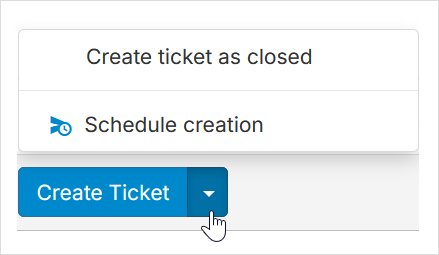
- At the bottom, next to Create Ticket, click the Down arrow and then Schedule creation.
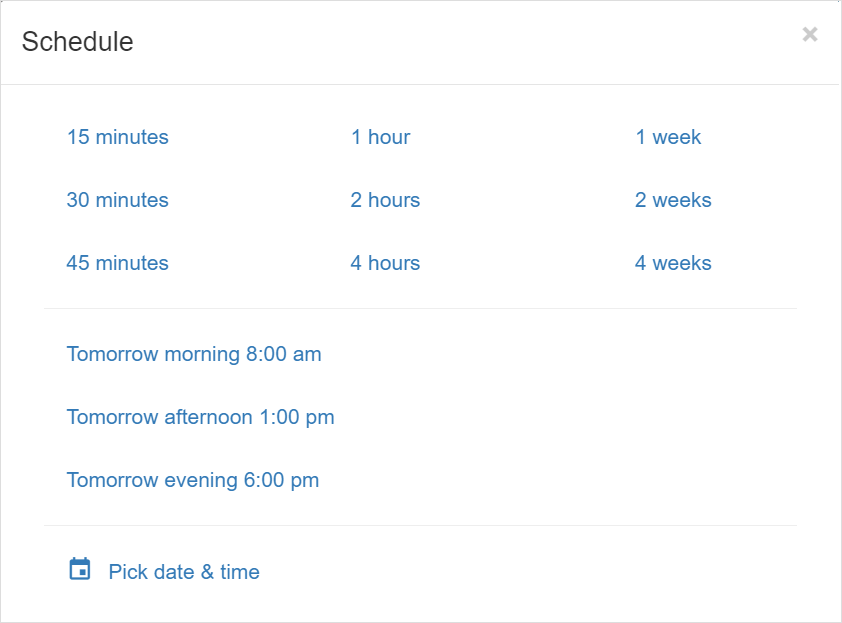
- Select or enter the date and time to schedule automatic ticket creation.
Schedule a public reply to send later
- Click the Public reply link at the bottom of the ticket, or press r for a quick keyboard shortcut.
- Edit the reply and add your text.
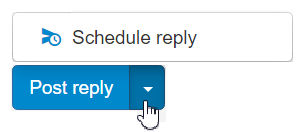
- At the bottom, next to Post reply, click the Down arrow and then Schedule reply.
- Select or specify a date and time to send the message.
View or change scheduled reply or ticket
- Click the More menu and select Scheduled, or use the g then e keyboard shortcut.
- Select the scheduled reply or ticket you want to update.
- Click Cancel on the right to allow you to edit the ticket or the reply.
When you cancel a scheduled reply, it becomes a draft again.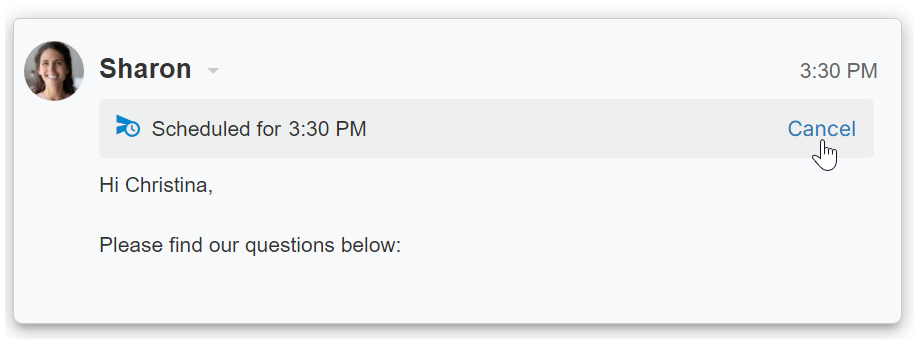
- Make your changes.
- At the bottom, next to Post reply, click the Down arrow and then Schedule reply.
- Select or specify a date and time to send the message.
Cancel a scheduled ticket or public reply
Click the More menu and select Scheduled, or use the g then e keyboard shortcut.
Select the scheduled reply or ticket you want to cancel.
Click Cancel on the right. When you cancel a scheduled reply, it becomes a draft again.
(Optional) To delete the message, at the bottom, click the Trash icon to discard the draft.
View all scheduled tickets and public replies
- Click the More menu in the blue toolbar at the top.
- Select Scheduled.
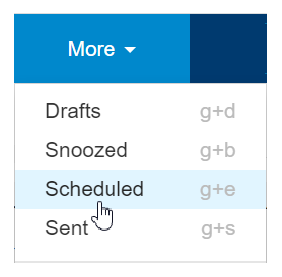
- All scheduled tickets and public replies will appear in the list.
- Hover over the Scheduled icon next to the ticket’s subject to see the scheduled date and time.
Perform actions from the scheduled view
- Click the More menu in the blue toolbar at the top.
- Select Scheduled.
- All scheduled tickets will appear in the list.
- Check the box next to the tickets you want to select.
- Use the options in the actions toolbar at the top part of the list to perform actions.